
Xogogy has 13 question types, from multiple choice to drag and drop. Each question gets its own slide and can count toward a scored quiz.
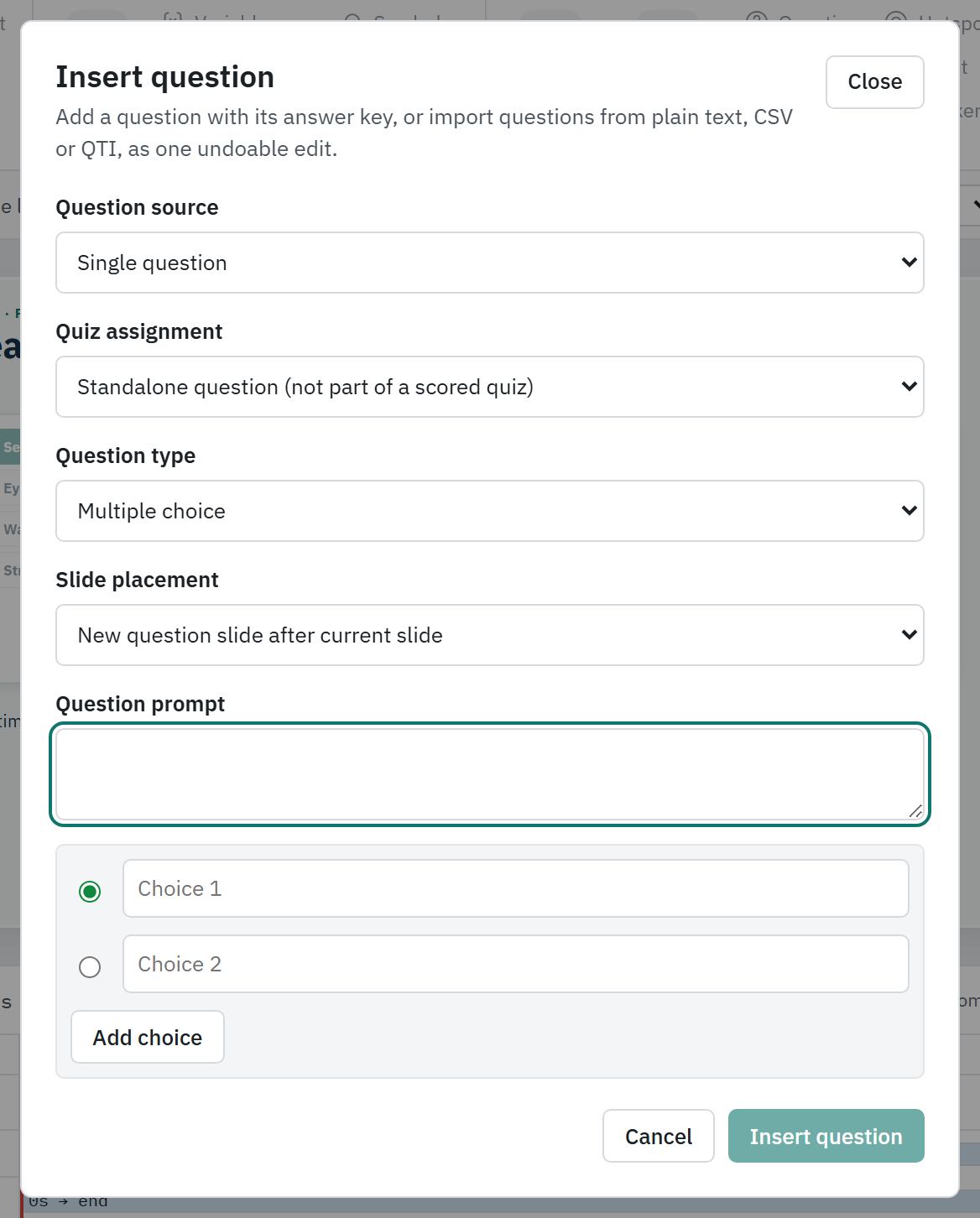
Add the question
- #
Select the slide the question should follow.
- #
Choose Insert › Question. (Slides › Question opens the same dialog.)
- #
Leave Question source on Single question.
- #
If the course has a quiz, choose it under Quiz assignment, or choose Standalone question (not part of a scored quiz).
- #
Choose the Question type: Multiple choice, Multiple response, True / False, Fill in the blank, Numeric, Matching, Sequence, Hotspot, Drag and drop, Word bank, Categorize, Likert survey or Essay / open response.
- #
Under Slide placement, choose New question slide after current slide, or Current slide to put it on the slide you are on.
- #
Write the Question prompt.
- #
Enter the choices or items. Use Add choice for more, and mark the correct answer.
- #
Choose Insert question.
Tip: Every scored question needs a correct answer that you state. Likert survey and Essay / open response collect answers without marking them right or wrong.
Next steps
- Edit the question to add feedback, points and attempts.
- Add a results slide to score the quiz and set a passing score.
- Choose Preview to answer the question the way a learner will.
Still stuck?
Write to support@xogogy.com. A person at GForce Learning reads every message. Include the app version from Help › About Xogogy.