
On a scrolling-page (block) slide, you edit and format block text right on the page, with the same editor and the same Text tab as on a fixed slide. Bold a single word, colour a phrase, make a list or add a link.
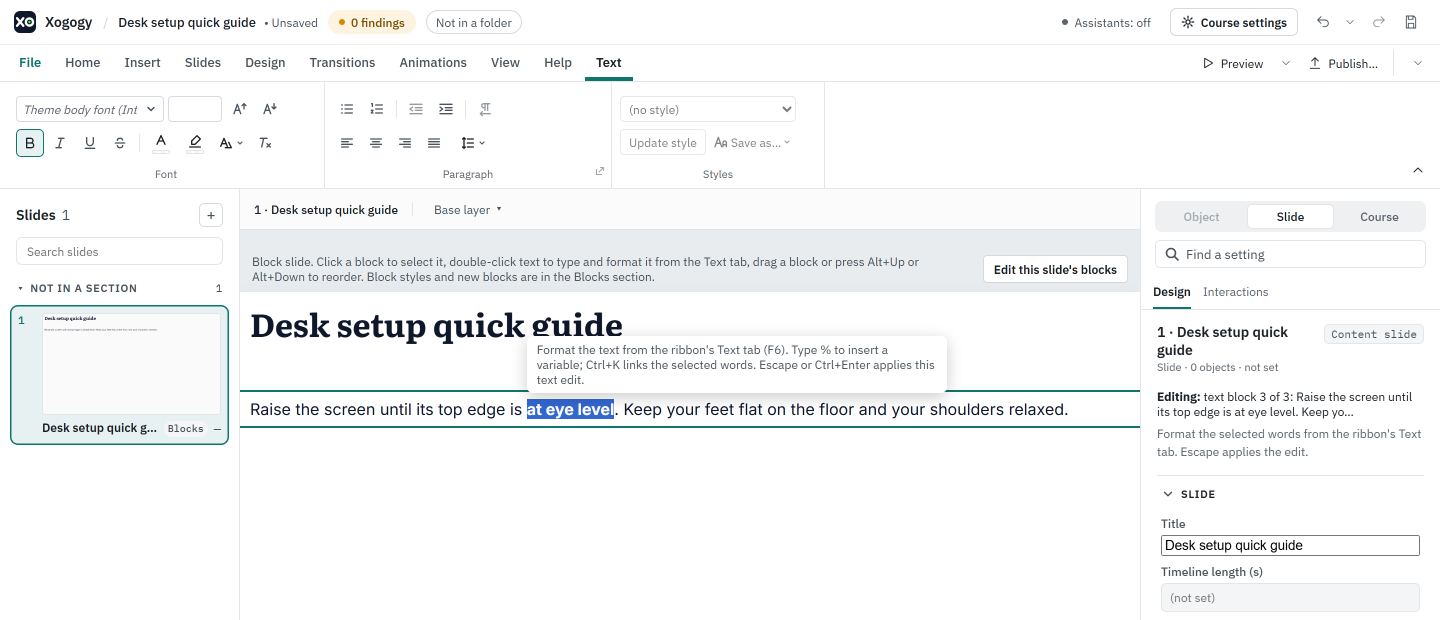
Edit a block's text
- #
Double-click a heading, text, quote, statement or list block on the page. Or select it and press Enter or F2, or choose Edit text on slide in Slide › Design › Blocks.
- #
Type your changes. The Inspector names the block you are editing.
- #
Press Escape or Ctrl+Enter to apply the edit, or click outside the block. In a heading, Enter applies it too; in other blocks, Enter starts a new paragraph.
Format the words
- #
While editing, select the words you want to change.
- #
On the ribbon's Text tab, change the font, size, Bold, Text colour, Highlight colour, alignment or spacing. The keyboard shortcuts work too, such as Ctrl+B, Ctrl+I and Ctrl+U.
- #
Keep typing, or apply the edit.
Preview and the published course show the formatting exactly as you set it.
Make a list
- #
While editing, put the caret in a paragraph, or select several.
- #
Choose Bullets or Numbering on the Text tab. Each paragraph becomes a list item.
- #
Choose it again to turn the list off. Turning Bullets off on every item of a list block makes it a text block in the same place.
Add a variable or a link
- To show a variable's value, choose Insert › Variable while editing, or type
%and pick the variable. See How do I show a variable's value in text?. - To link words, select them and press Ctrl+K (or Insert › Hyperlink), then choose a web address or a slide in this course. Remove link takes it off again.
Change only the words
The Block text box in Slide › Design › Blocks changes the words without opening the editor. Words that stay keep their formatting.
Tip: If an edit would remove formatting you set, Xogogy asks first in an Apply text edit? dialog. Choose Keep editing to go back with your formatting intact.
Each applied edit is one step you can undo with Ctrl+Z.
Still stuck?
Write to support@xogogy.com. A person at GForce Learning reads every message. Include the app version from Help › About Xogogy.