
Learners open courses on laptops, tablets and phones. You can see your course at each of those sizes, both in Preview and in your own browser.
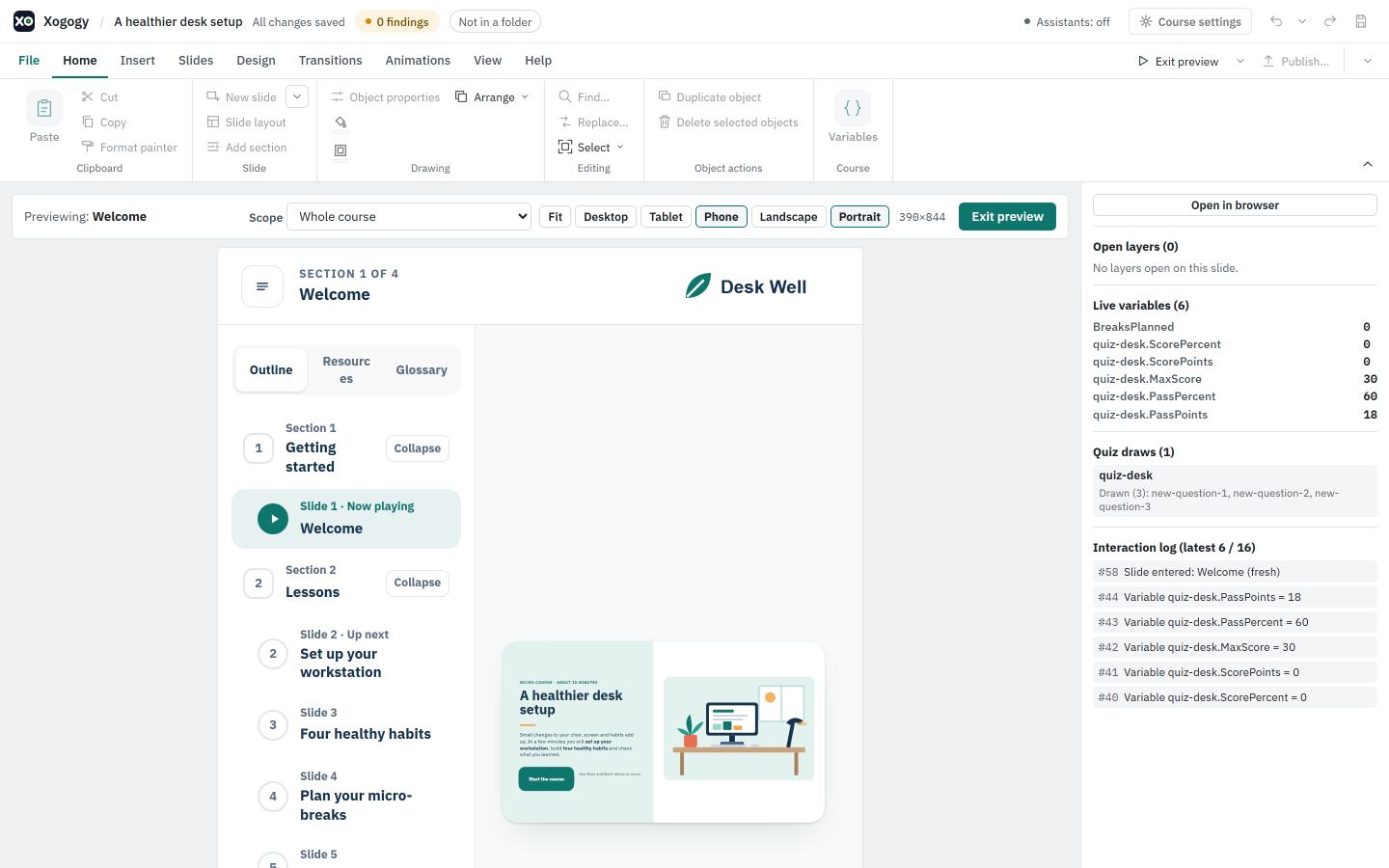
Check sizes in Preview
- #
Choose Preview at the right of the ribbon tab row.
- #
In the Preview toolbar, choose Desktop, Tablet or Phone. The course plays in a frame of that size.
- #
Choose Landscape or Portrait to turn the device. A phone starts upright and a desktop on its side.
- #
Choose Fit to go back to filling the space you have.
Check sizes in your browser
- #
Open the Preview options arrow beside Preview and choose Open in browser.
- #
The preview copy opens in your default browser with a Preview device toolbar at the top.
- #
Choose Fit, Desktop, Tablet or Phone, and Landscape or Portrait for a device size.
- #
The size shows beside the buttons, for example Phone · 390 × 844. When the browser window is smaller than the device, the frame is scaled down to fit and the line says so, for example shown at 80%.
- #
Choose Hide toolbar for a clean view. Show toolbar, at the top of the page, brings it back.
The browser remembers your last choice for that course, so the next preview copy opens at the same size.
The sizes
| Size | Landscape | Portrait |
|---|---|---|
| Desktop | The course's own slide size, such as 1280 × 720 | The same size turned upright |
| Tablet | 1024 × 768 | 768 × 1024 |
| Phone | 667 × 375 | 390 × 844 |
Tip: The Preview device toolbar is only in the preview copy. Published packages never include it.
To see how a course behaves in your LMS, publish it and test it in your LMS.
Still stuck?
Write to support@xogogy.com. A person at GForce Learning reads every message. Include the app version from Help › About Xogogy.