
Preview plays your course with the same player your learners get, right inside Xogogy. Nothing you click in Preview changes the course.
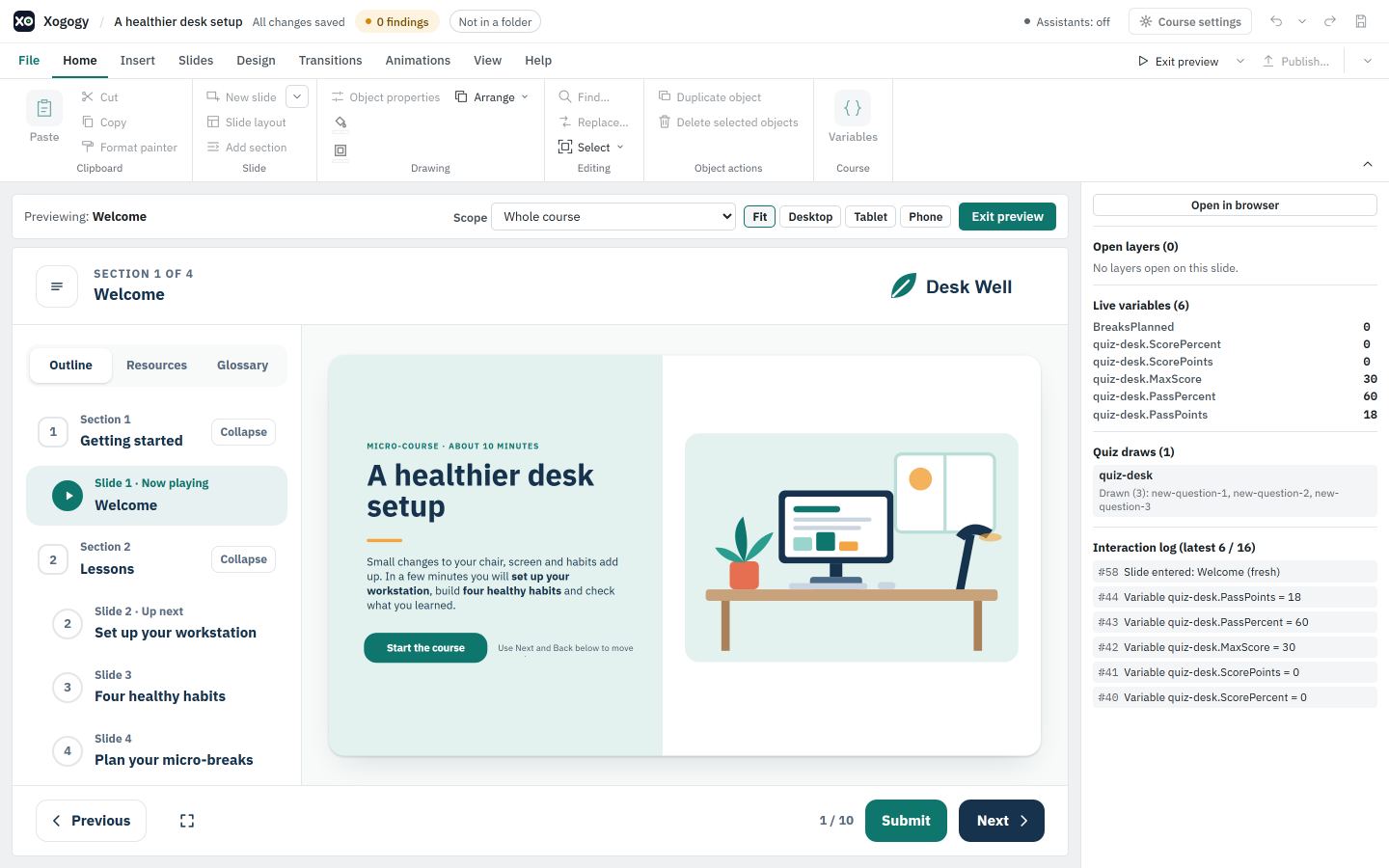
Play the whole course
- #
Open your course. Choose Preview at the right of the ribbon tab row. It stays there on every tab, next to Publish….
- #
The editor is replaced by the player. The toolbar shows the slide you are on, for example Previewing: Welcome.
- #
Use the player's own buttons, such as Next, Previous and Submit, just as a learner would.
- #
Choose Exit preview to return to the editor on the slide where you started.
Preview part of the course
- #
Select the slide you want to start from.
- #
Open the arrow beside Preview (Preview options).
- #
Choose Preview from this slide, Preview this section or Preview this slide only.
- #
To switch while you are in Preview, change the Scope list in the toolbar. Whole course plays from the start again.
Check other screen sizes
- #
In the Preview toolbar, choose Desktop, Tablet or Phone, then Landscape or Portrait.
- #
Choose Fit to scale the slide to the space you have.
The same sizes are in the browser copy. See How do I check my course at phone and tablet sizes?.
Tip: You can preview with the keyboard alone. Press Tab to reach the slide and its controls, then Enter or Space to press a button. When the slide itself has focus, the Right and Left arrow keys go to the next and previous slide.
Undo, Redo and Save are switched off while you preview, so a test run can never change your work. To see the course outside the app, use Open in browser.
Still stuck?
Write to support@xogogy.com. A person at GForce Learning reads every message. Include the app version from Help › About Xogogy.