
A SCORM package is the .zip file you upload to your LMS. It holds the Xogogy player, your course and its media, and reports progress, completion and scores back to the LMS.
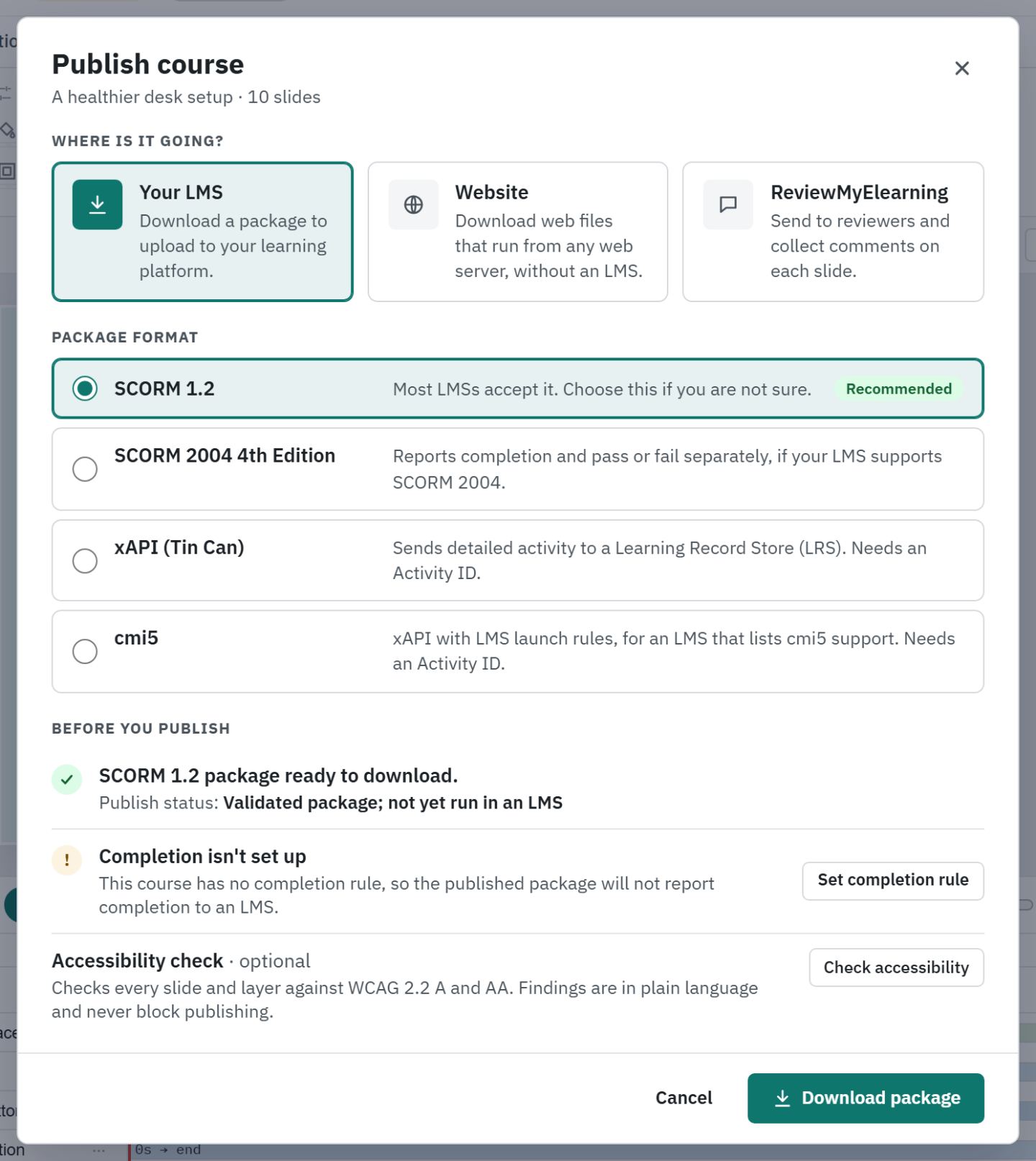
Publish the package
- #
Choose Publish… at the right of the ribbon tab row (or press Ctrl+Shift+P). The Publish course dialog opens.
- #
Under Where is it going?, choose Your LMS.
- #
Under Package format, choose SCORM 1.2. It is marked Recommended because most LMSs accept it. Choose SCORM 2004 4th Edition if your LMS asks for it; it reports completion and pass or fail separately.
- #
Read Before you publish. Xogogy checks the course and builds the package before you download it.
- #
Fix anything listed as blocking, such as a missing media file. Items such as Completion isn't set up do not block, but read them.
- #
Choose Download package and save the file. Its name ends in
.scorm12.zipor.scorm2004.zip. - #
The save dialog starts in your Downloads folder the first time, and after that in the folder you last published to. Once the file is saved, the dialog says where it went, for example Saved My-Course.scorm12.zip in Downloads, with the full path below. Choose Show in folder to open that folder with the package selected, then Close.
Look at the package before you upload it
- #
Extract all the files from the
.zipinto a folder. - #
Open
index.htmlfrom that folder. The course plays in Edge, Chrome or Firefox, without tracking: nothing is reported and progress is not saved. - #
If a file is missing from the folder, the page says so instead of staying blank.
The files inside the package carry the date and time you published it.
Upload it to your LMS
- #
In your LMS, add a new SCORM course or activity.
- #
Upload the
.zipfile exactly as Xogogy saved it. Do not unzip it first. - #
Launch it as a learner to check it. See How do I test a package in my LMS?.
Tip: Open Package details in the dialog to see the file name, its size and its SHA-256 fingerprint, handy when you need to tell two versions apart.
Publishing needs a licence. If the dialog shows Publishing needs a licence, choose Manage licence. See How do I activate my licence?.
Still stuck?
Write to support@xogogy.com. A person at GForce Learning reads every message. Include the app version from Help › About Xogogy.