
Your LMS only marks a learner complete when the course tells it to. The completion rule decides when that happens. An imported course often has no rule yet, and Xogogy reminds you before you publish.
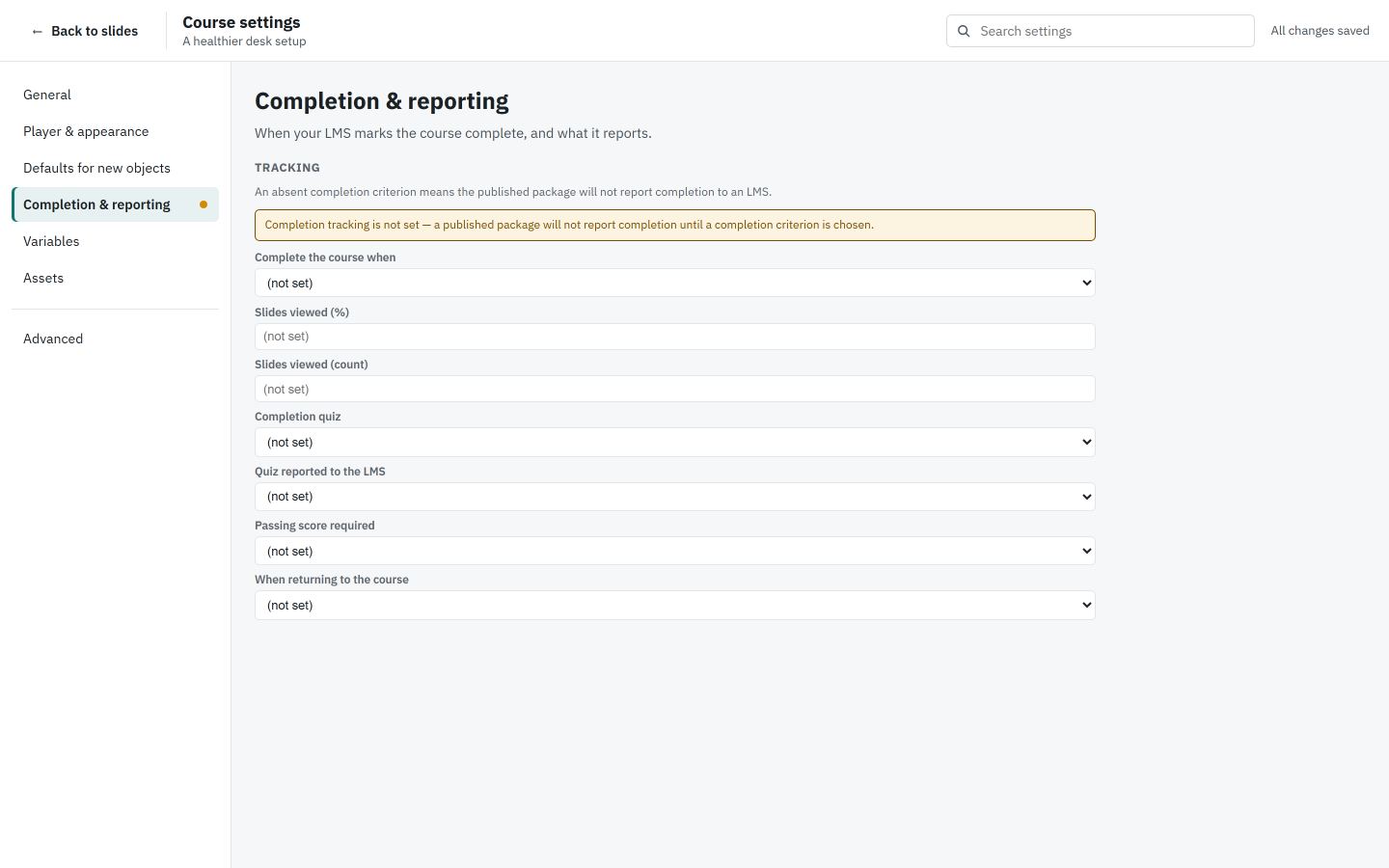
Choose a completion rule
- #
Choose Course settings in the header.
- #
Choose Completion & reporting.
- #
Open Complete the course when and pick a rule:
- View the required slides
- Complete a quiz or Pass a quiz
- View the required slides or pass a quiz
- View the required slides and pass a quiz
- Course-defined completion, when the course's own interactions decide
- #
For a slides rule, set Slides viewed (%) or Slides viewed (count).
- #
For a quiz rule, choose the Completion quiz, the Quiz reported to the LMS and whether a Passing score required.
Choose what happens when a learner returns
- #
In the same section, find When returning to the course.
- #
Choose Resume the previous attempt, Ask the learner or Start a new attempt.
Tip: In the Publish course dialog, Completion isn't set up means there is no rule yet. Choose Set completion rule beside it to jump straight here.
Every change here can be undone, and the rule is saved with the course.
Still stuck?
Write to support@xogogy.com. A person at GForce Learning reads every message. Include the app version from Help › About Xogogy.