
The order of slides in the Slides panel is the order learners see when they choose Next. You can rearrange slides by dragging or from the keyboard, move them between sections, and delete slides or sections you no longer need.
Move a slide
- #
In the Slides panel, drag the slide's thumbnail to its new place between two other thumbnails, or onto a section heading.
- #
From the keyboard, select the slide and press Alt+Up or Alt+Down to move it one place at a time. Move slide up and Move slide down on the Slides tab do the same.
Move a slide to another section
- #
Select the slide.
- #
On the Slides tab, choose Move to section.
- #
Pick the section from the list, or Not in a section, and choose Move to section.
Delete a slide
- #
Select the slide and choose Delete slide… on the Slides tab.
- #
Read the Confirm delete dialog and choose Confirm delete.
- #
If another part of the course still points to the slide, such as an interaction that jumps to it or the course's start slide, Xogogy keeps the slide and tells you what refers to it. Next to each interaction that refers to it, choose Show interaction to open that interaction. Change or remove the reference, then delete the slide again.
Delete a section
- #
Select a slide in the section and choose Delete section… on the Slides tab.
- #
Confirm. The section is removed and its slides stay in the course, outside any section.
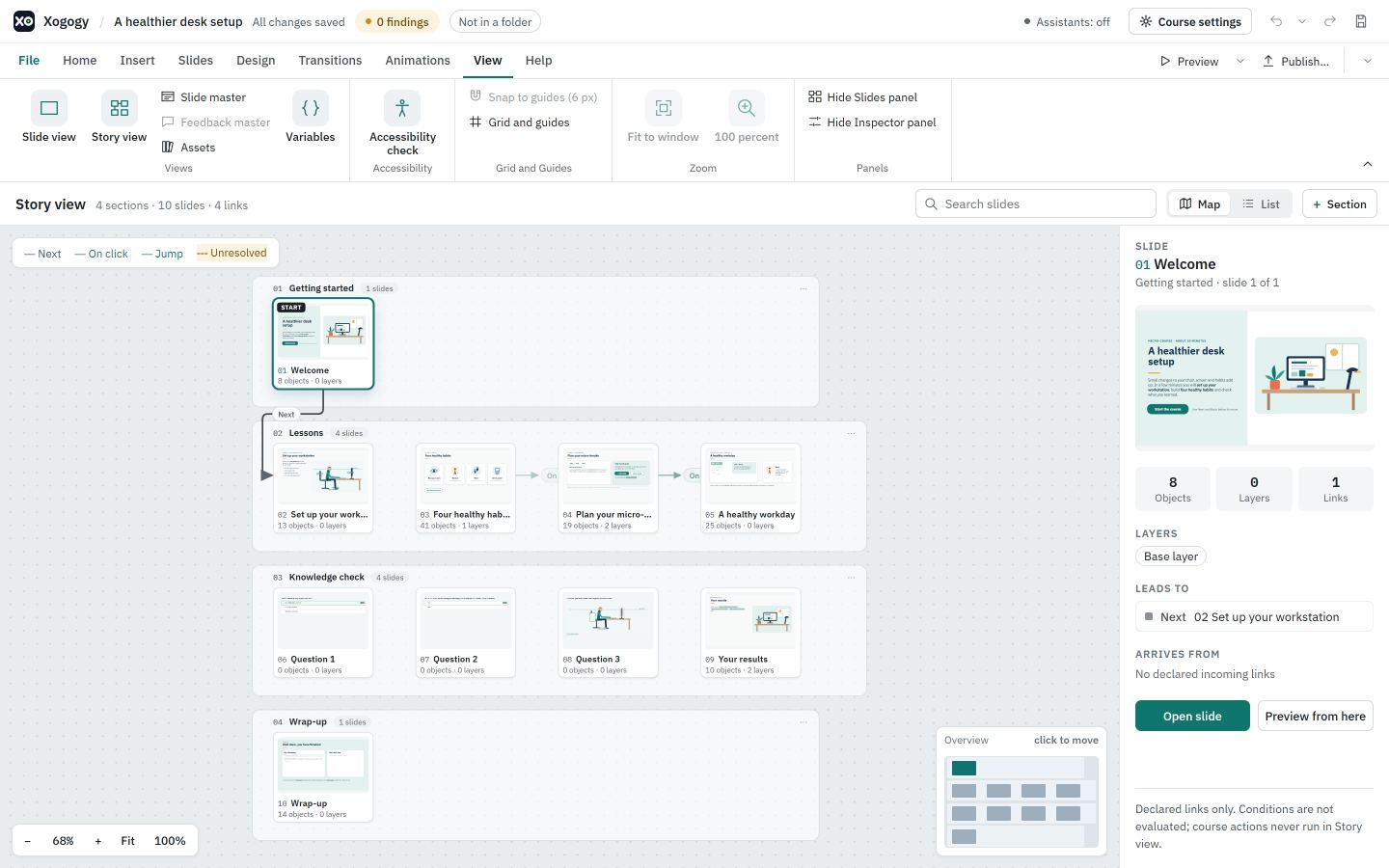
Tip: Choose Story view on the View tab to see the whole course as a map, including the links between slides, before you rearrange it.
Every move and delete can be undone with Undo or Ctrl+Z.
Still stuck?
Write to support@xogogy.com. A person at GForce Learning reads every message. Include the app version from Help › About Xogogy.