
The Xogogy editor has five areas. Once you know what each one is for, every other article in this help center makes sense.
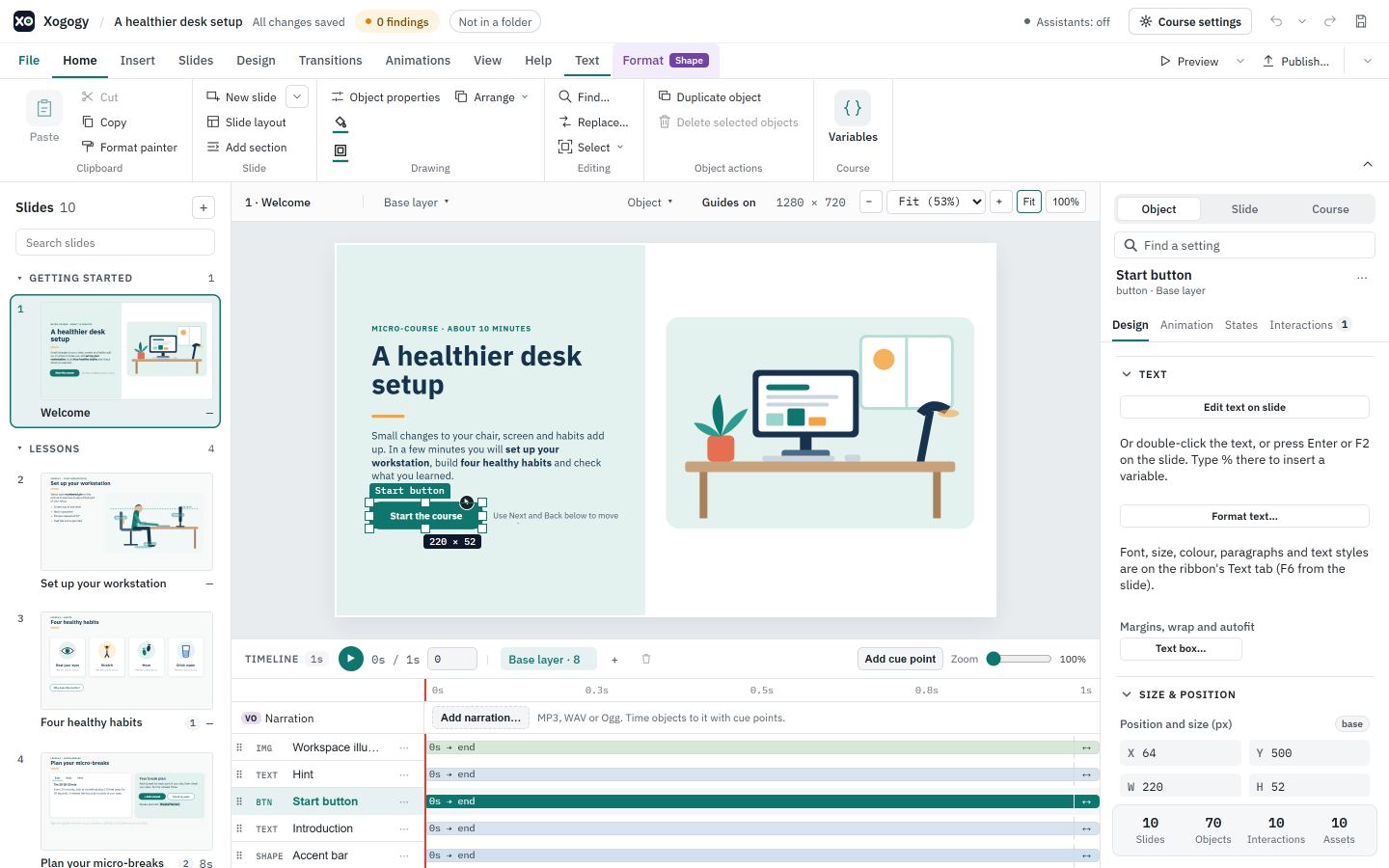
The five areas
- #
The header, along the top, shows the course title and whether your work is saved (All changes saved or • Unsaved). Next to it are the import findings count, the Assistants status, Course settings, and quick Undo, Redo and Save buttons. The arrow beside Undo (Undo options) lists Undo <assistant>'s last change and Edit history. Small chips in the header show facts that stay true while you work: Not in a folder for a course that is not saved to a project folder yet, Read-only or No recovery when those apply, and Early access in an early-access build. Point at a chip, or choose it, to read the details.
- #
The ribbon, below the header, holds the commands in tabs: File, Home, Insert, Slides, Design, Transitions, Animations, View and Help. A Text tab appears when you select an object with text or edit text, and holds all text formatting. A Format tab appears when you select an object; its badge says Text, Shape, Picture, Video, Audio or Table. Preview and Publish… sit at the right of the tab row on every tab, next to More commands.
- #
The Slides panel, on the left, lists every slide by section. Click a slide to edit it, or type in Search slides to find one by name.
- #
The stage, in the middle, shows the selected slide. Click an object on it to select it. The bar under the stage has the zoom controls and Fit, and the Timeline sits below.
- #
The Inspector, on the right, shows the properties of what you selected. Choose Object, Slide or Course at its top to switch between them. For an object, its tabs are Design, Animation, States and Interactions; for a slide, Design and Interactions. The Interactions tab shows how many interactions there are, and lists them.
Formatting lives on the ribbon; the Inspector keeps lists, behaviour and settings. The Design tab is split into sections, such as Text, Size & position and Accessibility. Click a section's header to open or close it; a closed section shows a one-line summary. To jump to a control by name, use Find a setting. Drag the edge between the stage and the Inspector to make the Inspector wider or narrower; double-click it to go back to the standard width. Xogogy remembers your choice.
Find a command you cannot see
- #
Press Alt+Q, or choose Help › Search commands.
- #
Type part of the command's name, such as duplicate.
- #
Use the arrow keys to pick it and press Enter. A command that cannot run right now says why, for example Select an object on the slide first.
You can also right-click an object, the slide or a slide in the Slides panel for a short menu of the commands that fit. See How do I use the right-click menus?.
Tip: When the window is narrow, the ribbon moves whole groups into More at the end of the tab. Nothing disappears; open More to find them.
Status messages, such as Loaded "Desk setup", appear briefly at the bottom left and go away by themselves. Point at one to keep it, or choose × to close it now.
Open the course-wide settings
- #
Choose Course settings in the header.
- #
Pick a section on the left: General, Player & appearance, Defaults for new objects, Completion & reporting, Variables, Assets or Advanced. Type in Search settings to jump straight to a setting by name.
- #
Choose ← Back to slides, or press Escape, to return to your slides.
Still stuck?
Write to support@xogogy.com. A person at GForce Learning reads every message. Include the app version from Help › About Xogogy.