
Right-click for a short menu of the commands that fit what you clicked. Each item is the same command as its ribbon button, with its shortcut shown beside it. An item that cannot run right now is greyed out, and its tooltip says why.
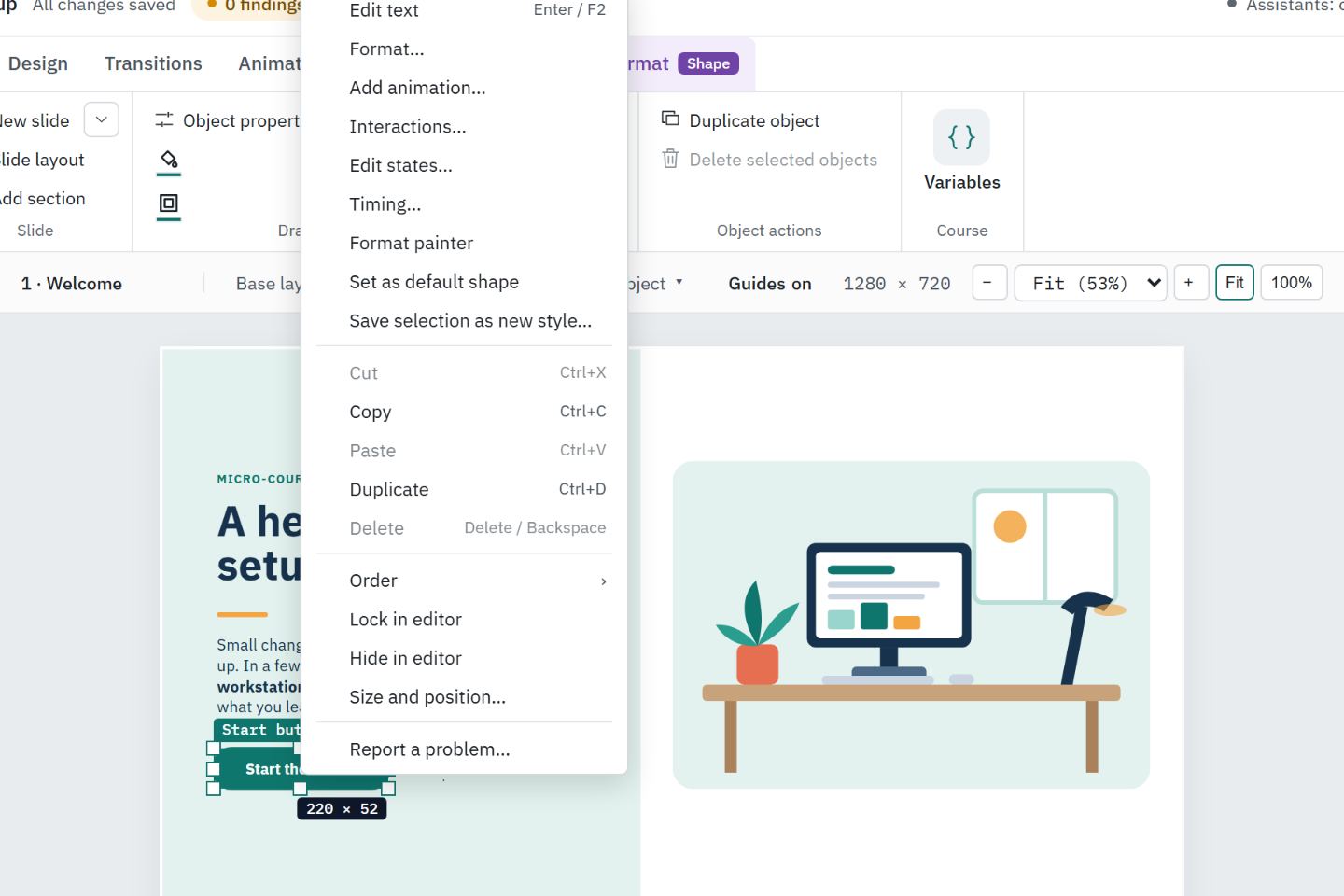
Right-click an object
- #
Right-click the object on the slide. It is selected first, so the menu acts on it.
- #
Pick a command. The menu has four parts:
- Tasks: Edit text, Format…, Add animation…, Interactions…, Edit states…, Timing…, Replace image…, Crop… and Alt text… (for pictures), Format painter, Set as default shape (Set as default text box for a text box) and Save selection as new style….
- Clipboard: Cut, Copy, Paste, Duplicate and Delete.
- Arrange: Order (Bring to front, Bring forward, Send backward and Send to back), Group or Ungroup, Lock in editor, Hide in editor and Size and position….
- Help: Report a problem…, to tell us about a problem with this object.
Format… opens Format details. Replace image… opens the file picker at once, and Crop… opens the crop boxes on the Format tab; see How do I crop, fit or replace a picture?. Set as default shape makes new objects of that kind start with this look; see How do I set the look of new shapes, buttons and text boxes?. Timing… takes you to the object's row in the Timeline. Lock in editor and Hide in editor last for this editing session only; the saved course does not change.
Right-click the slide or a slide thumbnail
- An empty part of the slide: Paste, Select all, Slide properties…, Format background…, Grid and guides and Snap to guides.
- A slide in the Slides panel: New slide after, Duplicate slide, Rename…, Move slide up, Move slide down, Move to section…, Preview from this slide and Delete slide….
- Text you are typing in, in a box or on the slide, keeps the usual text menu with Cut, Copy, Paste and Select all.
The Timeline has its own menu on each row: right-click a row, or use its ⋯ button.
Use the menus from the keyboard
Tip: The web browser's own menu (Back, Refresh, Print) never appears in Xogogy, and F5, Ctrl+R and Ctrl+P do nothing. A stray key cannot reload the app and lose your work.
Every change you make from a menu is one step you can undo with Ctrl+Z.
Still stuck?
Write to support@xogogy.com. A person at GForce Learning reads every message. Include the app version from Help › About Xogogy.