
Format details holds the finer formatting that does not fit on the ribbon: gradient and picture fills, line style, shadow and glow settings, crop and fit, and text box margins. It opens as a window beside the slide, so you can keep working while it is open.
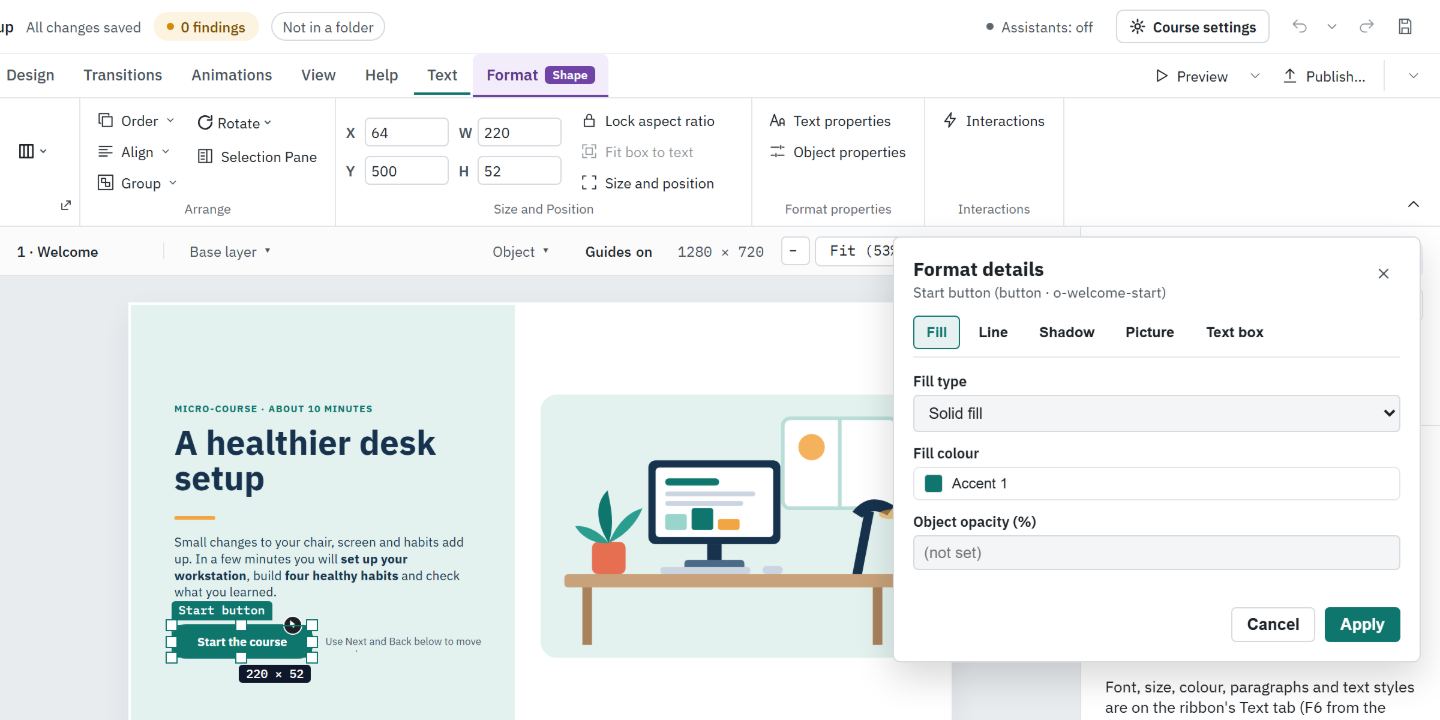
Open Format details
- #
Select the object on the slide.
- #
Choose the small arrow at the corner of a ribbon group. Each one opens the tab you need:
- Format › Shape styles opens Fill.
- Line options…, at the bottom of the Outline weight and dashes drop-down, opens Line.
- Shadow and glow options…, at the bottom of Shape effects, opens Shadow.
- For a picture, Format › Adjust opens Picture, and Format › Picture styles opens Line.
- Text › Paragraph opens Text box. So does Text box… under Margins, wrap and autofit in the Inspector's Text section.
- #
You can also right-click the object and choose Format…, or search for the setting with Find a setting.
Make your changes
- #
Pick a tab: Fill, Line, Shadow, Picture or Text box. Use the Left and Right arrow keys to move between tabs.
- #
Change what you need:
- Fill: Fill type (No fill, Solid fill, Gradient fill or Picture fill), the Fill colour, a gradient's Start colour and End colour, or a picture from the course and its Fit mode. Picture fill needs an image already in the course.
- Line: Line colour, Line width (px), Line style (dash) (Solid, Dashed, Dotted or Dash-dot) and Corner radius (px).
- Shadow: the Drop shadow and Outer glow, or Remove drop shadow and Remove outer glow.
- Picture: Picture fit and Crop left, Crop top, Crop right and Crop bottom.
- Text box: Internal margins (px), Vertical alignment, Autofit (such as Shrink text on overflow or Resize shape to fit text) and Word wrap in shape, or Clear all text box overrides.
- #
Choose Apply. All your changes land together as one step you can undo. Cancel, or Escape, closes the window without changing anything.
Only the boxes you changed are written. Everything else keeps the value it had. An empty box shows the value the object falls back to, such as Middle (default) or 10 (default).
While the window is open
- The slide, ribbon and Inspector stay usable. Select another object and the window reads that object instead.
- If the course changes while you are editing, the window says so. Choose Cancel and open it again to start from the current look.
Format details while editing a state
When you edit an object state (States tab › Edit look), the window says Editing the Hover state: Apply changes this state only. Settings that every state shares, such as corner radius, picture fit and crop, and the text box margins, wrap and autofit, are turned off with a note saying why. See How do I use object states?.
Tip: For everyday changes, the ribbon is quicker: Shape fill, Shape outline, Shape effects and Transparency apply as soon as you pick, and Format › Crop crops a picture. See How do I format objects?.
Still stuck?
Write to support@xogogy.com. A person at GForce Learning reads every message. Include the app version from Help › About Xogogy.