
The Inspector on the right holds every setting for what you have selected. Find a setting takes you straight to one by name, or by the word you would use for it.
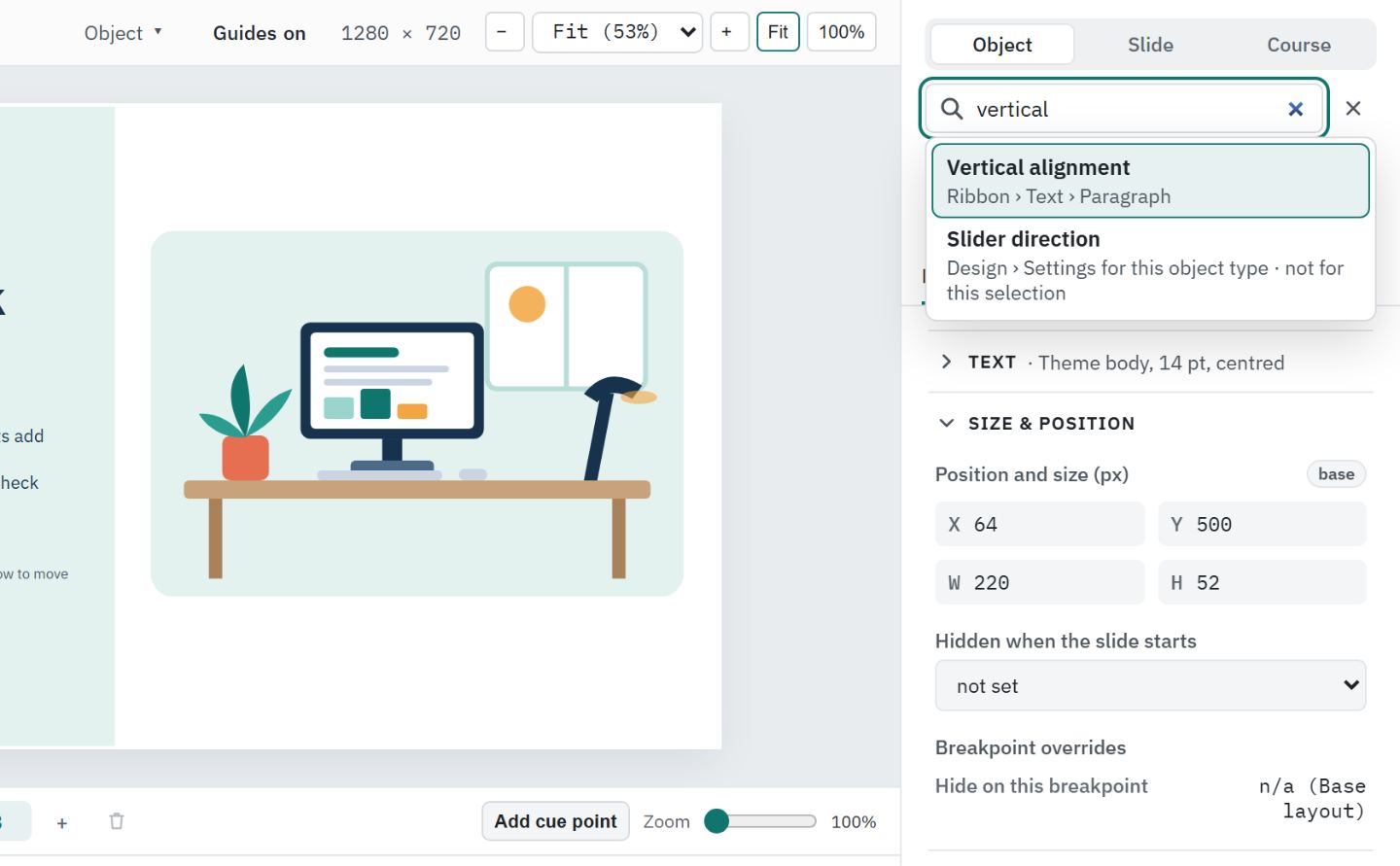
Search for a setting
- #
Choose Find a setting at the top of the Inspector, or press Ctrl+F while focus is in the Inspector. (Elsewhere, Ctrl+F opens find and replace.)
- #
Type what you are looking for. Everyday words work too: vertical, middle, alt, transparency, rotate, lock or script.
- #
Each result says where the setting lives, such as Design › Size & position, Course settings › General or, for formatting on the ribbon, Ribbon › Text › Font and Ribbon › Format › Shape styles. Choosing a ribbon result opens that tab at the control, or opens Format details at the right tab. Transparency, Corner radius, Rotation, Crop and Image fit open their drop-down on the Format tab, and a slide's Transition effect, Transition direction and Transition duration open the Transitions tab. A setting that does not fit what you have selected is marked not for this selection. Press the Up and Down arrows to move through the list.
- #
Press Enter, or click a result.
Xogogy switches to the right tab, opens the section, scrolls to the control, puts the cursor in it and highlights it for a moment. Press Escape to close the search box.
The search covers every tab, Design, Animation, States and Interactions, as well as the slide's settings and Course settings.
When a setting does not apply
Some settings belong to one kind of object, such as Crop for pictures. If you choose one that does not fit what you have selected, the box says so and names the objects it applies to, for example Crop doesn't apply to this button. It applies to images and vector graphics. Select one of those and search again.
Open and close sections
The Design tab is split into sections in a fixed order. For an object: Text, Size & position, Media, a section for the object's own type (such as Table or Slider), Link, Accessibility and Advanced. For a slide: Slide, Blocks, Question, Results, Accessibility and Advanced. Only the sections that apply appear.
- #
Click a section's header, or focus it and press Enter or Space, to open or close it.
- #
A closed section shows a one-line summary, such as 200 × 100 at 40, 40 or No alt text, so you can check a value without opening it.
Xogogy remembers which sections you keep open, across objects and from one session to the next.
Tip: To find a command rather than a setting, press Alt+Q. See search commands and shortcuts.
Still stuck?
Write to support@xogogy.com. A person at GForce Learning reads every message. Include the app version from Help › About Xogogy.