
Picture tools sit on the Format tab, which shows Picture on its badge when a picture is selected. Each change is one step you can undo.
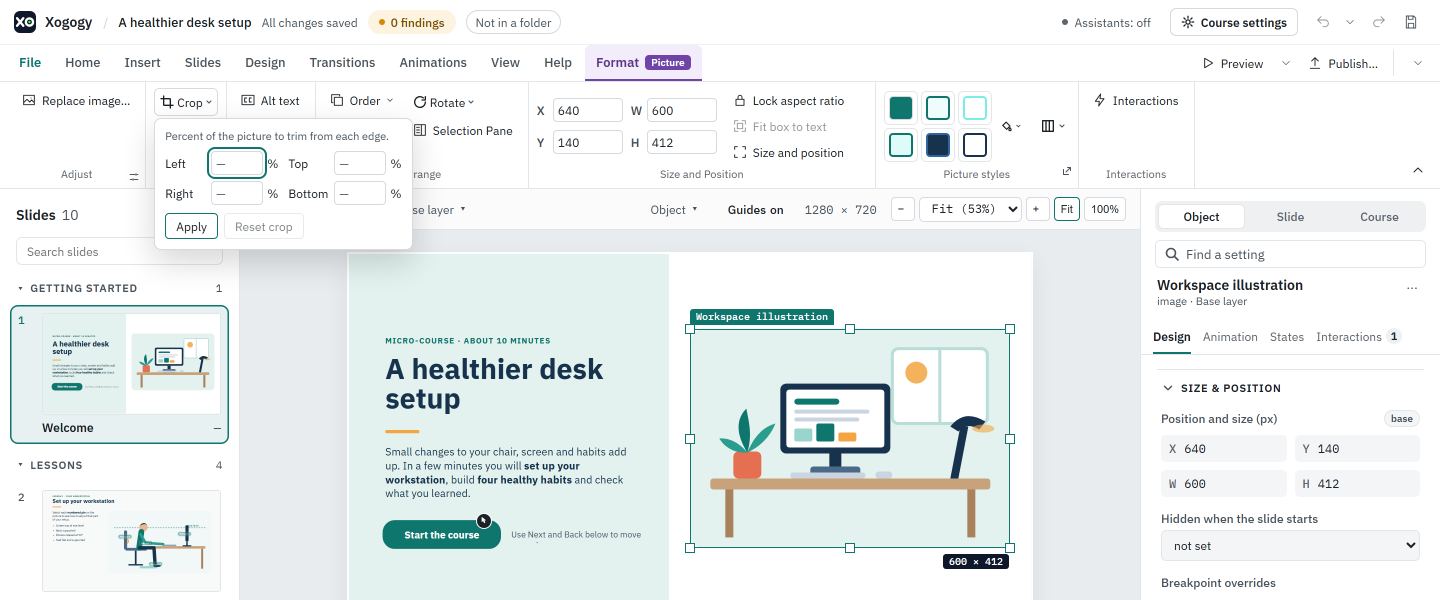
Crop a picture
- #
Select the picture on the slide and open the Format tab.
- #
Choose Crop. Or right-click the picture and choose Crop….
- #
Type the percent to trim from the Left, Top, Right and Bottom edges. For a picture with no crop yet, fill in all four boxes; type 0 for an edge you want to keep. After that, change only the edges you want.
- #
Choose Apply, or press Enter.
A value below 0, of 100 or more, or anything that is not a number is refused, and the reason is shown. To show the whole picture again, open Crop and choose Reset crop.
Choose how a picture fits its box
- #
Select the picture and open the Format tab.
- #
Open Fit and choose Contain (fit inside), Cover (fill), Stretch or Original size.
- #
The first entry in the list clears your choice, so the player's own default applies. When the course states that default, the entry shows it, marked (default).
Replace the picture
- #
Select the picture and open the Format tab.
- #
Choose Replace image… in the Adjust group, or right-click the picture and choose Replace image….
- #
The file picker opens. Choose a PNG, JPEG, GIF, WebP or SVG file.
The new picture takes the old one's place, size and alt text, and a message above the slide says what was replaced. Replace image changes the picture in every state of the object, so it is off while you edit a state.
Tip: The full crop and fit settings are also in Format details: choose the small arrow at the corner of Format › Adjust to open it on Picture. The Inspector no longer has an Image section; the alt text is in its Accessibility section.
Still stuck?
Write to support@xogogy.com. A person at GForce Learning reads every message. Include the app version from Help › About Xogogy.