
Every change you make in Xogogy is recorded as a step you can undo. The history is saved with the project, so you can still undo after closing and reopening it.
Undo and redo
While you are typing in a text field, Ctrl+Z undoes your typing in that field first.
Go back to an earlier point
- #
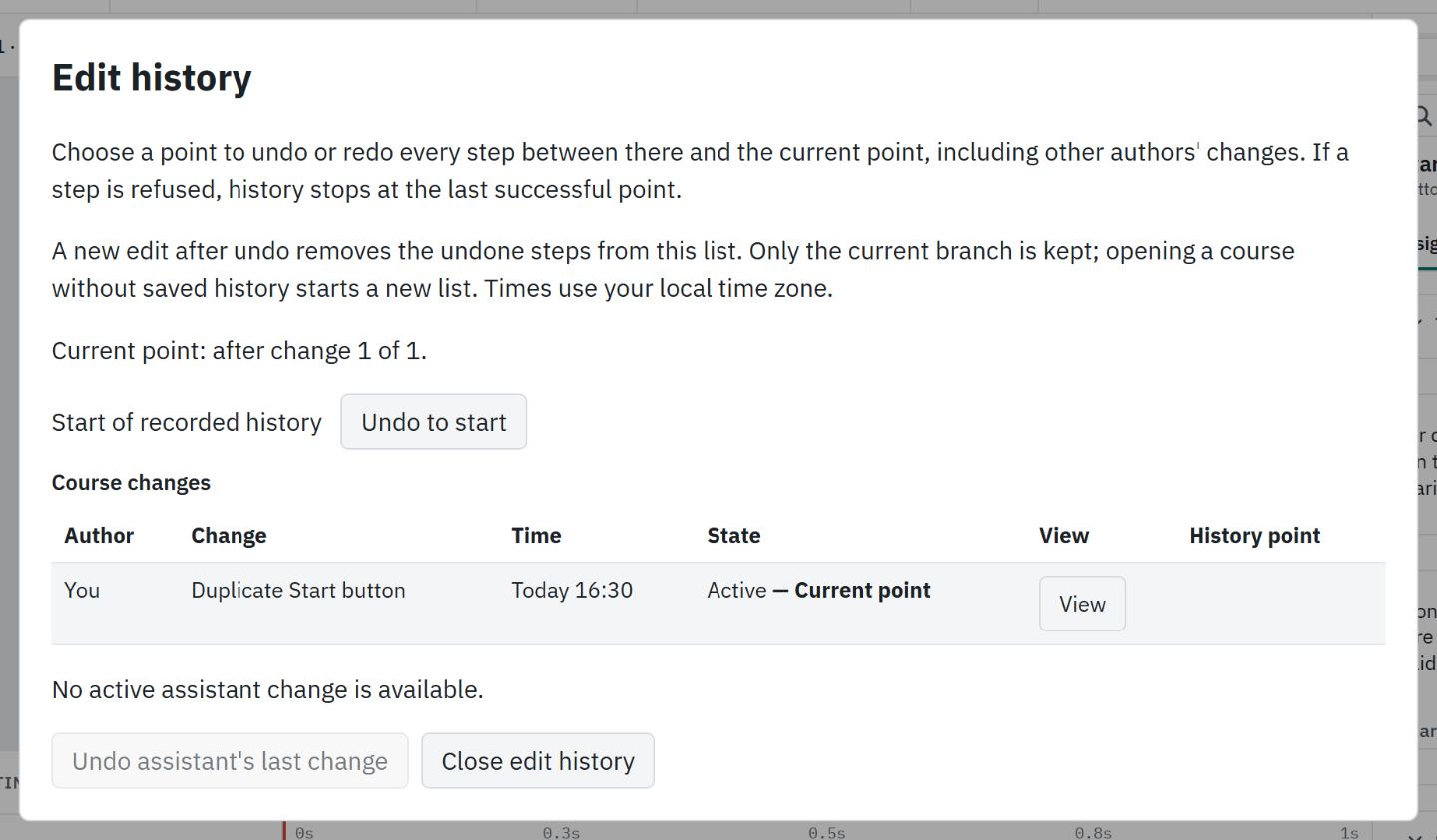
Open the Undo options arrow beside Undo in the header and choose Edit history. It is also in File, and you can find it with Alt+Q.
- #
The list shows each labelled change with its author and time, and marks the Current point.
- #
Choose the point you want to return to. Xogogy undoes or redoes every step between there and now, including changes made by an assistant.
- #
Choose Close edit history when you are done. Focus goes back to the control you opened it from.
Tip: If you undo some steps and then make a new edit, the undone steps leave the list. Only the current line of changes is kept.
Undo an assistant's change
- #
Open the Undo options arrow beside Undo and choose Undo <assistant>'s last change, which names your assistant, or press Ctrl+Alt+Z.
- #
Only the assistant's last change is undone; your own edits stay.
Still stuck?
Write to support@xogogy.com. A person at GForce Learning reads every message. Include the app version from Help › About Xogogy.