
An assistant can make dozens of changes in a few seconds. Instead of a message for each one, Xogogy shows one activity card in the bottom-right corner that describes the whole run.
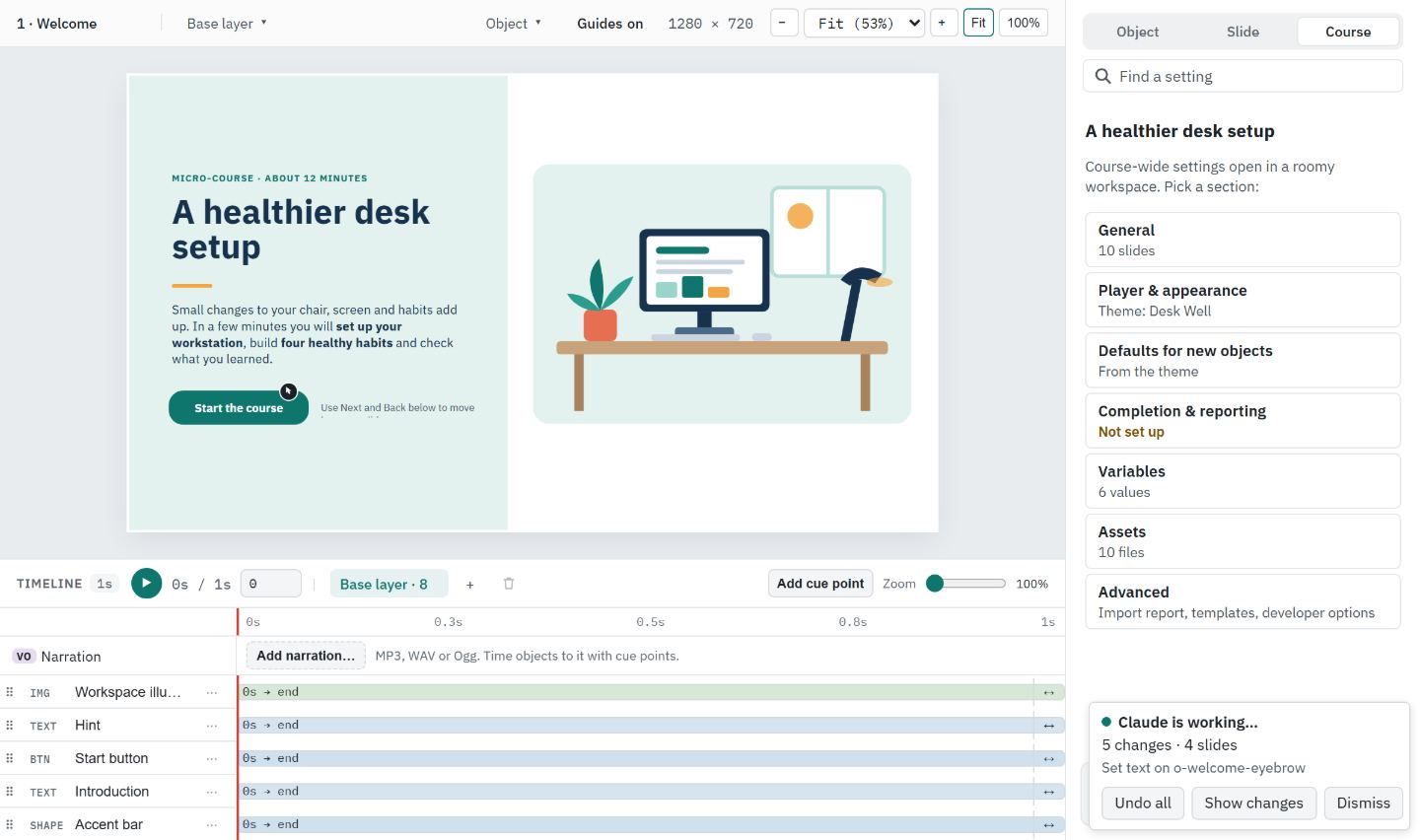
Follow a run as it happens
- #
Ask your assistant for a change while the course is open with Allow assistants to connect on. The slide updates with each change.
- #
The card reads, for example, Codex is working…, with a running count such as 14 changes · 3 slides and the latest change on one grey line. The card stays the same size and its buttons stay in the same place.
- #
Point at the card, or move keyboard focus into it, to hold its text still while you read. The card shows Updates paused; the assistant's changes carry on, and the card catches up when you move away.
- #
When the assistant has been quiet for 8 seconds, the card becomes a summary, for example Codex made 23 changes on 4 slides. It stays until you choose Dismiss or the next run starts.
A run is every change from one assistant with no pause longer than 8 seconds. A different assistant starts a new run; your own edits in between do not end it. Screen readers hear two short announcements per run: one when the assistant starts and the summary at the end.
See which slides changed
- #
In the Slides panel, each slide the run changed gets a small dot on the top-right corner of its thumbnail. Screen readers hear, for example, Changed by Codex after the slide's name.
- #
Click a marked slide to look at it. Its dot goes away once you visit it, and comes back if the same run changes that slide again.
- #
The slide you are on is not marked, because you can see it change.
A new run replaces the dots with its own, and Dismiss and Undo all clear them. The dots are only on screen; they are never saved in the course.
Take back the whole run
- #
Choose Undo all on the card. Every change in the run is undone, newest first.
- #
The card then reads, for example, Undid 23 changes by Codex.
If you, the command line or another assistant changed the course after the run started, Undo all is turned off and the card says why: undoing the run would remove those later changes too. Use Show changes and undo step by step instead.
See what changed
- #
Choose Show changes. Edit history opens with the run's rows marked · this run and the newest one in view.
- #
Choose View on a row to select what it changed.
- #
Choose Undo to here on a row to undo back to that point.
Dismiss removes the card. Edit history keeps every change.
Tip: To take back only the assistant's latest change, press Ctrl+Alt+Z. See How do I undo a change my assistant made?.
Undoing marks the course as changed. Choose Save to keep the undo, as with any other edit.
Still stuck?
Write to support@xogogy.com. A person at GForce Learning reads every message. Include the app version from Help › About Xogogy.