
A Xogogy course is a folder on your computer. Inside it is a small course file, <Name>.xogogy, which is the file you open and double-click. Next to it sit the course itself (course.ccf.json), its media in assets and its edit history in history, all as ordinary files.
Save your work
- #
Choose Save in the header, or press Ctrl+S. Ctrl+S works wherever you are typing, including in a box in the Inspector and while you edit text on the slide.
- #
If the course has not been saved yet, as with a new course or the sample course, a save dialog opens. It starts in the Documents › Course Studio folder and has the course title filled in as the name.
- #
Keep the name or type another, and choose Save. Xogogy makes a folder with that name and saves the course in it.
- #
The header shows Saving… while it writes, then All changes saved. While you have unsaved edits it shows • Unsaved next to the course title. Saving does not clear your undo steps.
From then on, Save writes to that folder without asking.
Xogogy never puts one course inside another. If you pick a place inside a course folder, the new course goes beside that course, and a message says so. If the name is already taken there, the course is named Name (2), or the next free number, and a message says so. Nothing is overwritten.
Tip: If you cancel the save dialog, Xogogy says Kept in memory for this session only and keeps the • Unsaved mark, so you can save later.
Save a copy under a new name
- #
Choose File › Save as…, or press Ctrl+Shift+S.
- #
Pick a place and a name in the save dialog, as for a first save.
- #
Xogogy saves the copy as a new course folder and switches to it. The original stays as you last saved it.
Reopen a project
- #
On the start screen, choose Open project. If a course is open, choose File › Open project.
- #
Pick the course's
.xogogyfile and choose Open. The dialog shows only course files. - #
Or choose the course under Recent projects, which lists the last ten courses you opened by their course titles, with each course's folder below the title. A course you have opened before on this computer opens with one click, with no dialog.
You can also double-click a .xogogy file. Xogogy opens it, and if another course has unsaved changes it asks what to do with them first.
If a course has moved or been deleted, Xogogy says so and opens the Open project dialog so you can pick its course file in its new place. You can also remove the old entry with Remove from Recent. Removing an entry never deletes your files.
Tip: A course that Xogogy does not yet remember on this computer asks you to choose it once more. After that it opens from Recent projects with one click.
Open a course saved by an older version
Courses saved by an older version of Xogogy have a <Name>.course file instead of <Name>.xogogy. They still open the same way: with Open project, from Recent projects or by double-clicking. Xogogy keeps the .course file as it is and never renames it.
Open a project saved before course files
A project saved by a much earlier version has no course file at all.
- #
Choose File › Open project.
- #
Switch the file type to the older project option and pick the project's
course.ccf.jsonfile. - #
The next time you save, Xogogy adds the course file for you.
Close a project
- #
Choose File › Close project to go back to the start screen.
- #
If you have unsaved changes, choose Save, Do not save or Cancel.
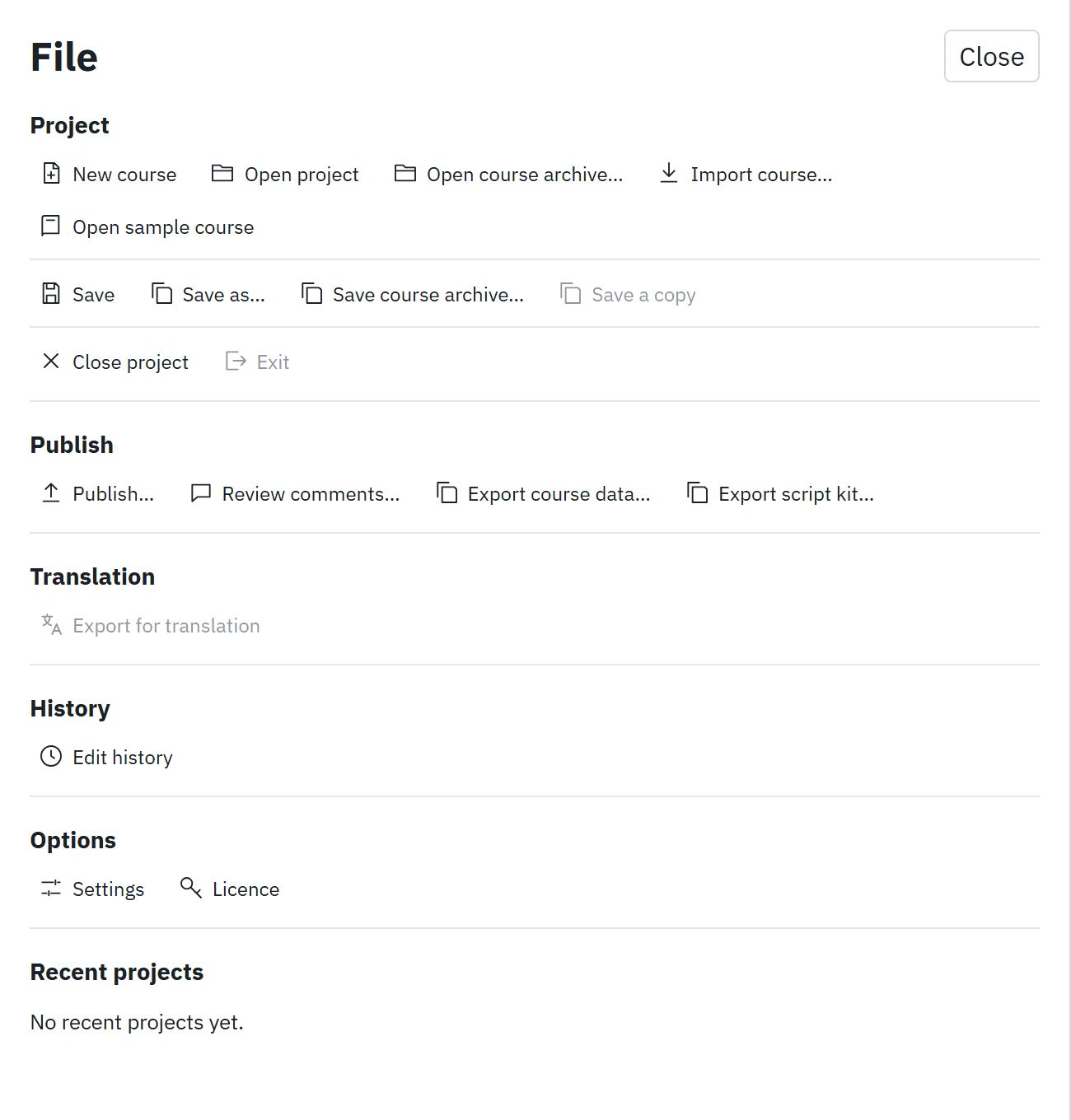
In the File panel, the project commands sit in three rows: one to start or open a course (New course, Open project, Open course archive, Import course, Open sample course), one to save it (Save, Save as, Save course archive, and Save a copy, which is shown but not available yet) and one to close it (Close project, Exit).
Tip: Opening another project, importing a course or opening the sample asks the same question first, so you never lose work by accident.
Still stuck?
Write to support@xogogy.com. A person at GForce Learning reads every message. Include the app version from Help › About Xogogy.