
A transition plays as the learner arrives at a slide. You set it on the slide it leads into.
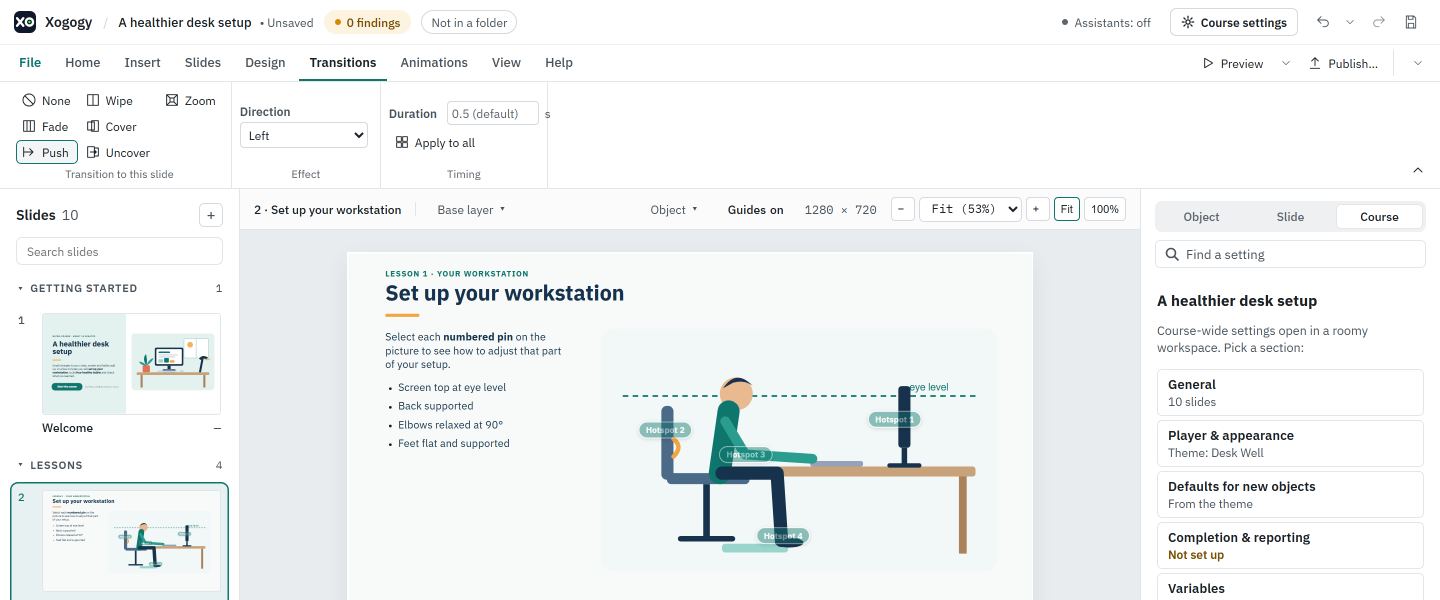
Set a slide transition
- #
Select the slide in the Slides panel.
- #
Open the Transitions tab. Under Transition to this slide, choose Fade, Push, Wipe, Cover, Uncover or Zoom. Choose None to remove a transition.
- #
For Push, Wipe, Cover and Uncover, pick Left, Right, Up or Down in the Direction list under Effect. Fade and Zoom have no direction, so the list is off and says why. The first entry leaves the direction to the player.
- #
Under Timing, type a Duration in seconds, such as
0.5or0.5s, and press Enter. Up and Down step 0.1 seconds, and 1 second with Shift. Leave the box empty to use the player's default, which shows greyed in the box, such as 0.5 (default).
Each change is one step you can undo. A value that is not a number of seconds is refused, and the reason is shown.
Use the same transition everywhere
- #
Set up the transition on one slide.
- #
Choose Apply to all under Timing. Every slide gets the same transition.
Tip: Choose Preview to see the transition play. The transition settings are only on the Transitions tab; the Inspector no longer has a Transition section.
Still stuck?
Write to support@xogogy.com. A person at GForce Learning reads every message. Include the app version from Help › About Xogogy.