
Animations bring objects onto the slide, take them off, draw attention to them or move them along a path. Each animation is one undoable change.
Add an entrance or exit
- #
Select one or more objects on the slide.
- #
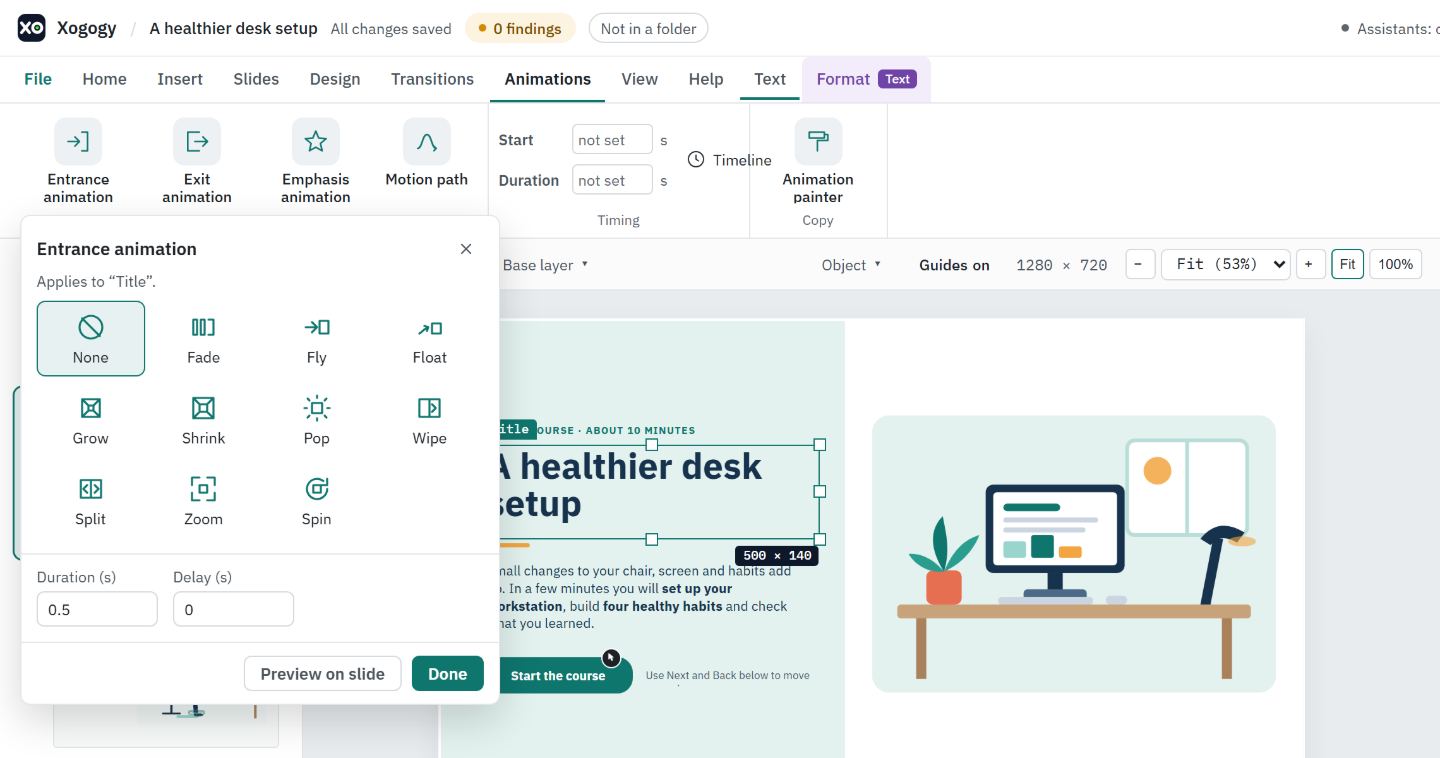
Open the Animations tab and choose Entrance animation or Exit animation. A gallery opens under the button.
- #
Pick an effect: Fade, Fly, Float, Grow, Shrink, Pop, Wipe, Split, Zoom or Spin. It applies to every selected object and a short preview plays on the slide.
- #
For Fly, Float, Wipe and Split, choose a direction under Effect options, such as From left.
- #
Set Duration (s) and Delay (s). They start at 0.5 seconds and 0 seconds.
- #
Choose Preview on slide to replay it, then Done.
Add emphasis or a motion path
- #
Select the object and choose Emphasis animation (Pulse, Bounce or Spin) or Motion path (a line left, right, up or down, or an arc).
- #
Leave Play when the slide starts (adds an interaction) ticked to play it when the slide opens. Untick it to start it from your own interaction instead.
- #
Choose Done.
Change or remove an animation
- #
Select the object and open the Animation tab in the Inspector.
- #
Each animation is listed with Change, Preview and Remove. Use Add entrance animation… and the other Add buttons for kinds the object does not have yet.
- #
To remove an effect from the gallery instead, choose None.
Tip: Animated objects show a small round marker at their top-left corner, and the Timeline shades the entrance and exit at the ends of the object's bar.
When your computer is set to reduce motion, the previews on the slide are switched off. The animations are still saved and play for learners who allow motion.
Still stuck?
Write to support@xogogy.com. A person at GForce Learning reads every message. Include the app version from Help › About Xogogy.