
An interaction makes something happen in your course: when something occurs, then do something. In Xogogy interactions live in the Inspector's Interactions tab, and each one reads as a plain sentence such as "When the learner clicks Start button → Jump to next slide".
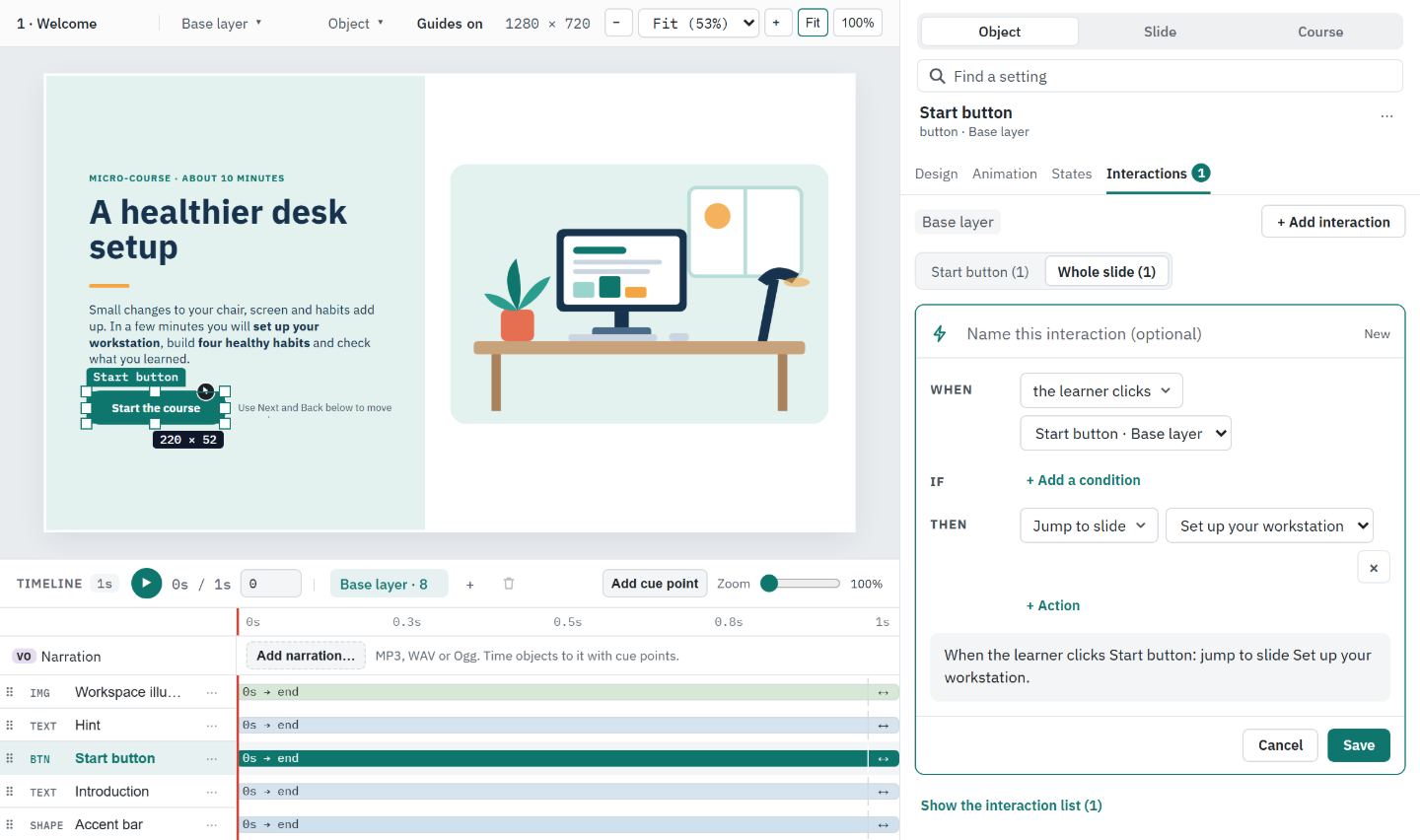
Add an interaction
- #
Select the object the learner will use, such as a button. To add an interaction for the whole slide, click an empty part of the slide instead.
- #
Open the Interactions tab in the Inspector and choose + Add interaction. Insert › Interaction, Interactions on the Format tab and an interactive object's + Add interaction… button do the same. The tab's name shows how many interactions there are, such as Interactions 2.
- #
Under WHEN, click the event, for example the learner clicks, and choose the object it applies to.
- #
Under THEN, click the action, for example Jump to slide, and choose its target.
- #
Read the summary line under the fields. It states the interaction in plain words, so you can check it does what you mean.
- #
Optionally, type a name in Name this interaction (optional).
- #
Choose Save. The new interaction appears as a card on the Interactions tab.
Add more than one action
- #
In the builder, choose + Action under the first action.
- #
Pick the next action. Actions run in the order they are listed.
Find an event or action quickly
Clicking the event or the action opens a list with a search box.
- #
Type a few letters: var leaves only Set variable. The choices are grouped, such as Go to, Layers, Objects, Variables and Media, and each has a one-line description.
- #
Press Enter to pick the highlighted choice, or click it. Escape clears the search, then closes the list.
- #
Your three most recent choices sit at the top of the list.
On the slide, an object that starts an interaction shows a small marker on its top edge.
Tip: Need more space? Drag the edge between the stage and the Inspector to widen it while you work.
Check it works
- #
Choose Preview at the right of the ribbon tab row.
- #
Do what the learner would do, such as clicking the button.
- #
Look at the Interaction log in the Preview side panel. Each interaction that runs is listed as Interaction fired: with its name and event, newest first.
Every interaction you add can be undone with Undo or Ctrl+Z.
Still stuck?
Write to support@xogogy.com. A person at GForce Learning reads every message. Include the app version from Help › About Xogogy.