
The Timeline below the slide lists every object on the slide, front first. Drag a row to change which object sits in front of which.
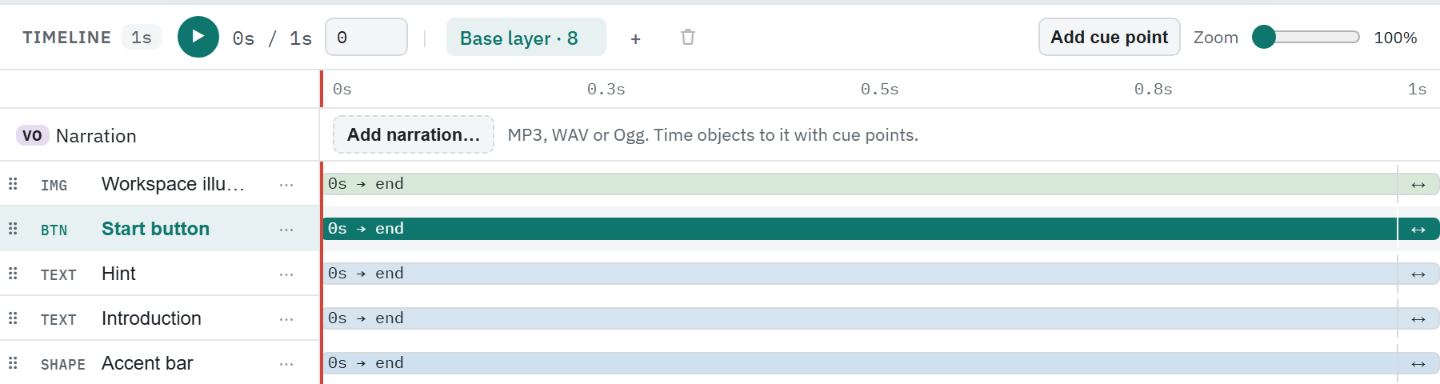
Drag a row
- #
Find the object's row in the Timeline.
- #
Drag the grip (⠿) at the left of its name up or down. A line shows where the row will land.
- #
Let go to move it. Press Escape while dragging to cancel.
The top row is the front object, so moving a row up brings that object in front of the ones below it. The slide repaints in the new order straight away. Dragging the timing bar still changes the object's timing, as before.
Move a row from the keyboard
- #
Focus the object's row in the Timeline.
- #
Press Alt+Shift+Up to move it in front of the row above, or Alt+Shift+Down to move it behind the row below. Ctrl+] and Ctrl+[ do the same.
- #
A screen reader hears the new position, for example Now 2 of 4 from the front of the base layer.
Each move is one step in your history, named after the objects, such as Moved Rectangle 1 in front of Triangle 1. Press Ctrl+Z to undo it.
Groups and layers
- A group moves with all its members.
- An object inside a group moves only among the other members of that group.
- Rows move within the layer you are editing: the base layer or the open layer.
To put an object into or out of a group, use Group and Ungroup. To move it to another layer, cut and paste it. To move several selected objects at once, use Home › Drawing › Arrange › Order or the right-click Order menu.
When a row will not move
The Timeline says why when the order cannot change: on a scrolling-page (block) slide, at a responsive breakpoint, while a state is previewed, or for an object locked with the row's ⋯ menu.
Tip: Selection Pane, under Home › Editing › Select, takes you straight to the selected object's row.
Still stuck?
Write to support@xogogy.com. A person at GForce Learning reads every message. Include the app version from Help › About Xogogy.