
A design theme sets the course's colours and fonts in one go. Xogogy comes with five: Default Studio, Ocean Breeze, Editorial Forest, Warm Amber and High Contrast Light.
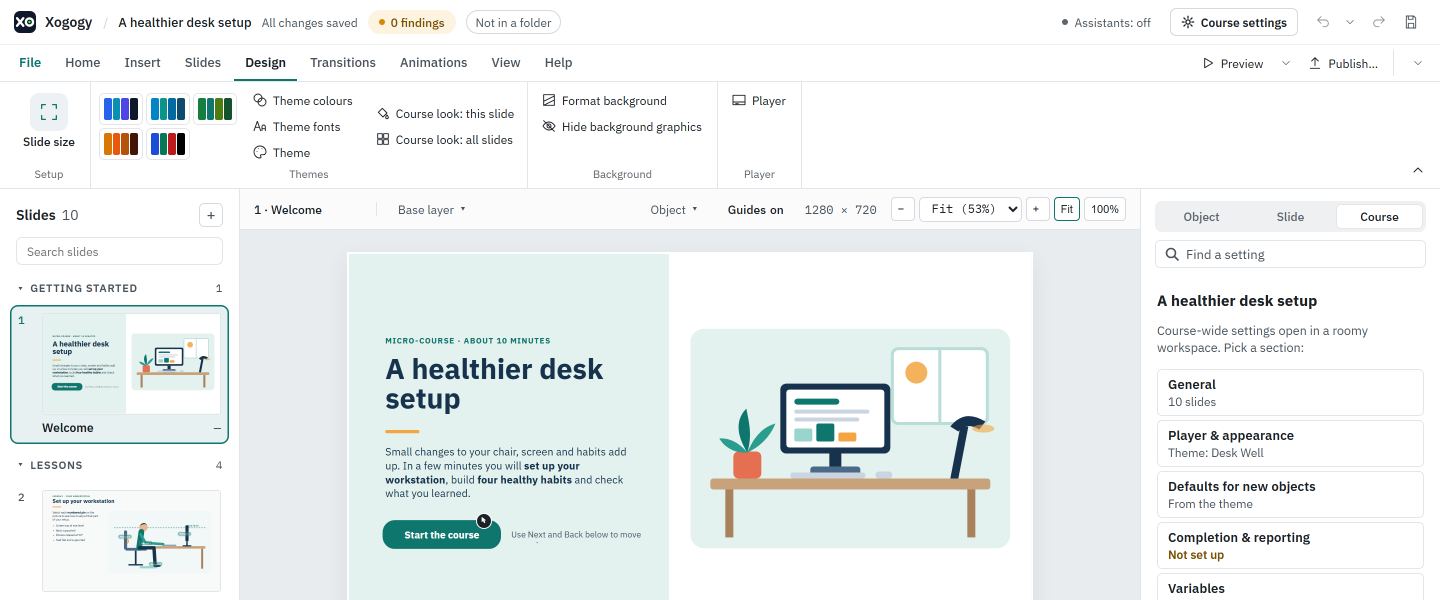
Try and apply a theme from the ribbon
- #
Open the Design tab. The Themes gallery shows each theme as a set of colour swatches.
- #
Point at a theme, or move to it with the keyboard, to preview it on the slide. Nothing in the course changes.
- #
Choose the theme to apply it. Existing slides are restyled from the old theme to the new one, your own colours stay, and a note says what was restyled. Ctrl+Z undoes it in one step.
Theme colours, Theme fonts and Theme beside the gallery open the theme settings in Course settings › Player & appearance.
Try a theme in Course settings
- #
Choose Course settings in the header, or Theme beside the Design › Themes gallery.
- #
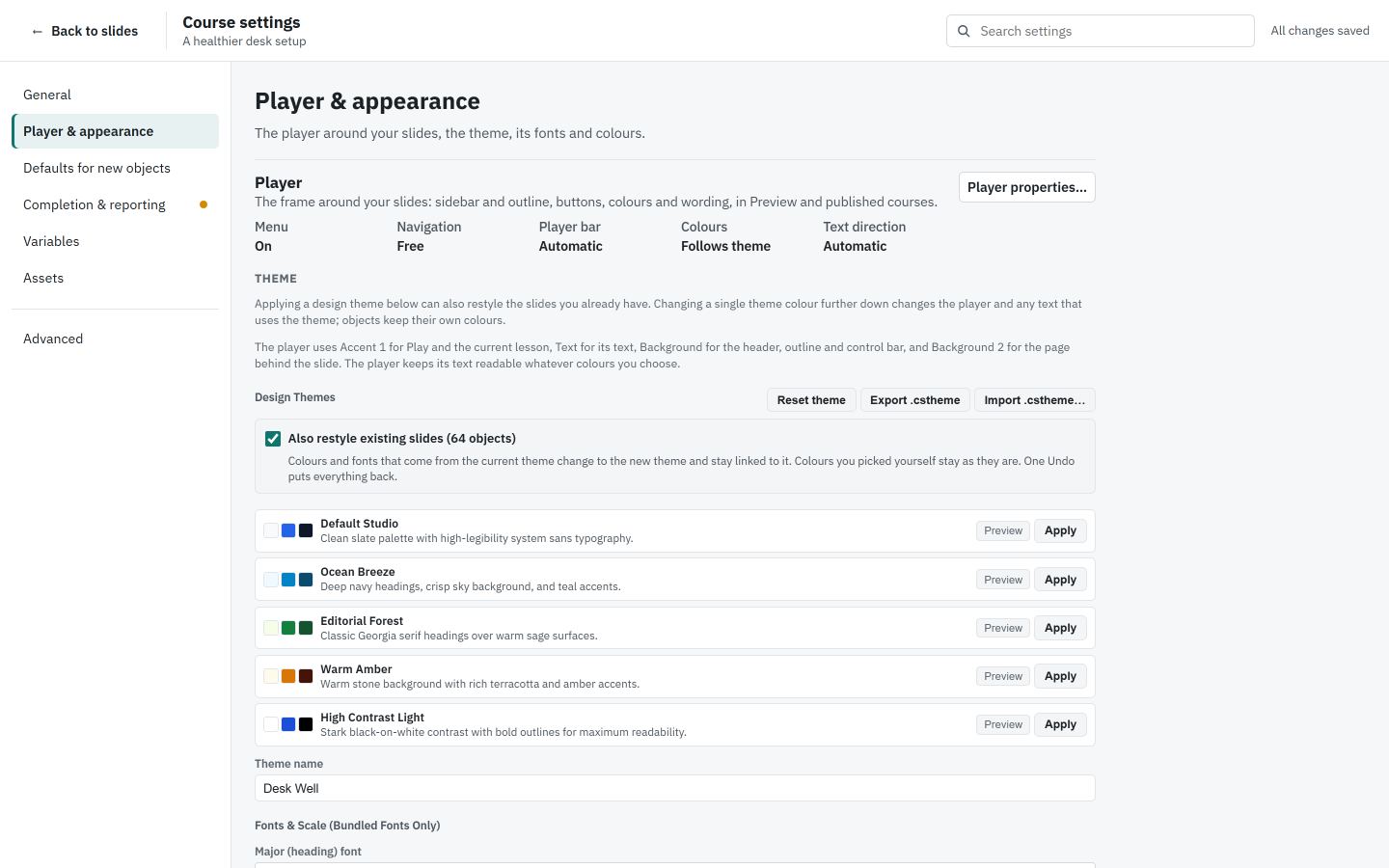
Open Player & appearance and scroll to THEME.
- #
Choose Preview on a theme to see it on your slides. Nothing is changed yet.
Apply it
- #
Check Also restyle existing slides. It is on to start with, and moves the colours and fonts already in the course that came from the old theme to the new one; your own colours stay. Clear it to leave existing objects as they are.
- #
Choose Apply on the theme.
- #
Choose ← Back to slides to see the result. Press Ctrl+Z to undo it.
Go back to the original
- #
Choose Reset theme under THEME.
Tip: Applying a theme is one step in the history, so you can try several and undo back to where you started.
Bring older plain objects up to the theme
Applying a theme restyles colours and fonts that came from the old theme. Older plain objects, such as white flip cards or shapes with no style of their own, can still look out of place. Choose Course look: this slide or Course look: all slides beside the Design › Themes gallery to give them the theme styles. See How do I give older plain objects the course look?.
To fine-tune the result, change theme colours and fonts.
Still stuck?
Write to support@xogogy.com. A person at GForce Learning reads every message. Include the app version from Help › About Xogogy.