
New shapes, buttons and widgets in Xogogy start in your theme's styles. Objects added before that, or by an assistant before it styled its content, can still be plain: white flip cards with a thin blue outline, or shapes and buttons with no style of their own. Course look brings them up to date.
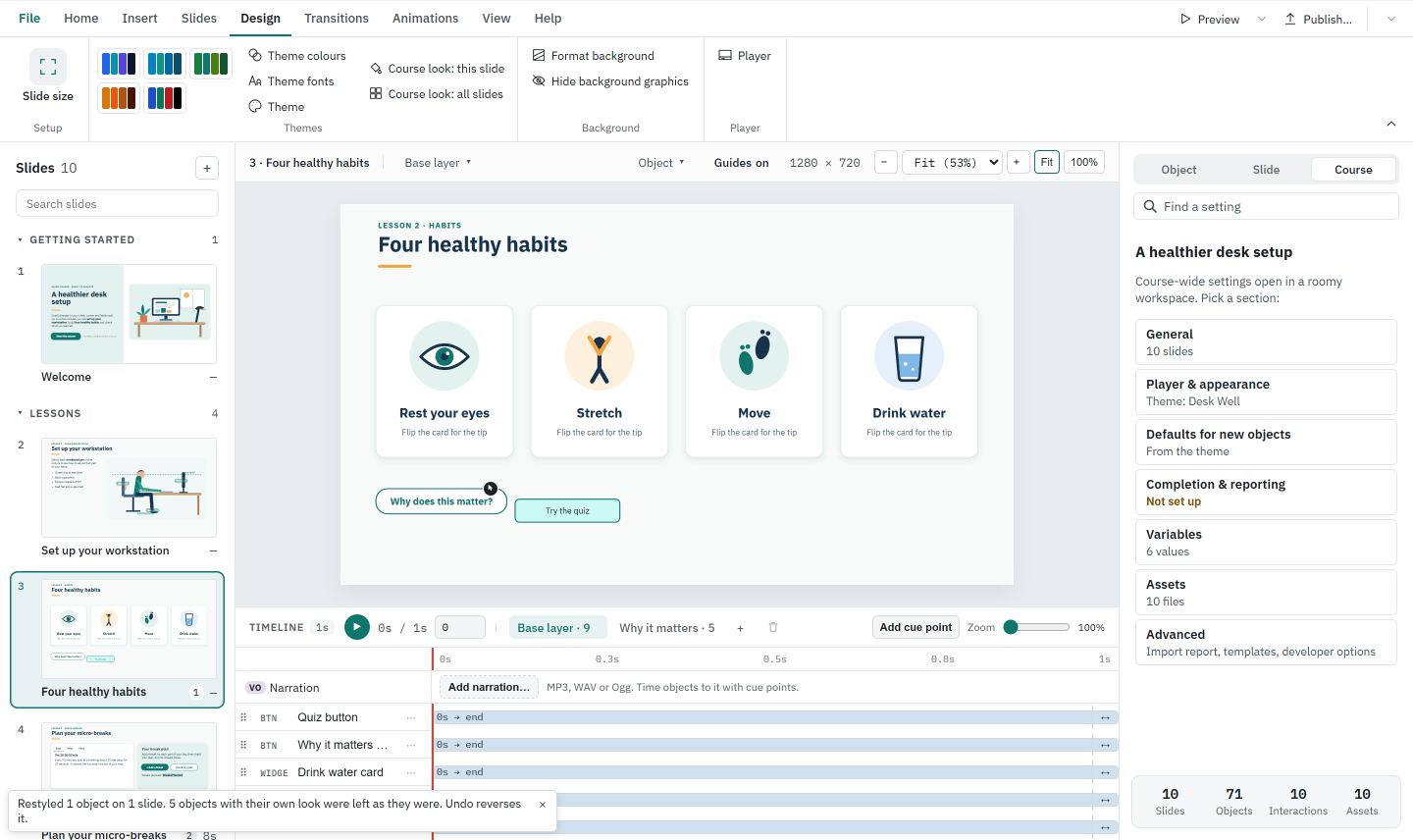
Restyle one slide or the whole course
- #
Open the Design tab.
- #
Beside the Themes gallery, choose Course look: this slide for the slide you are on, or Course look: all slides for every slide.
- #
A message says what happened, for example Restyled 6 objects on 2 slides. Undo reverses it.
The whole restyle is one step in your history. Press Ctrl+Z, or choose Undo, to put every object back.
What changes and what stays
Course look changes only plain objects:
- Flip cards, tabs and other interactions still in the old white-and-blue look.
- Shapes and buttons with no style of their own.
They take the same theme styles Xogogy gives a new object today, so they match the rest of the course and follow later theme changes.
These never change: objects you formatted yourself (your own fill, outline, text box settings or quick style), objects that came in with an imported course, text boxes and pictures. If you chose My own defaults for shapes or buttons in Course settings › Defaults for new objects, plain shapes or buttons stay as they are too. When some objects keep their own look, the message counts them. When nothing on the slide is plain, the message says No plain objects to restyle on this slide.
Scrolling-page (block) slides follow the block design and hold no objects to restyle, so Course look: this slide is turned off there and says why. Course look: all slides skips them.
Tip: Your assistant can do the same. Ask it to "apply the course look", and to preview it first. It lists every object it would change and why it skips the others. See How do I ask my AI assistant to work on a course?.
To change the theme itself, see How do I apply a design theme?.
Still stuck?
Write to support@xogogy.com. A person at GForce Learning reads every message. Include the app version from Help › About Xogogy.