
You can add your own JavaScript to any interaction. The script runs when the interaction does, for example when the learner clicks a button or when a slide starts. It can show, hide and move objects, change their state or text, and read and set course variables.
To see or change scripts that came in with an imported course, see How do I keep and run my course's own JavaScript?.
Add an interaction that runs JavaScript
- #
Select the object the learner will use, such as a button. For a script that runs when the slide starts, click an empty part of the slide instead.
- #
Open the Interactions tab in the Inspector and choose + Add interaction. Insert › Interaction on the ribbon does the same. You can also right-click the object, choose Interactions…, then + Add interaction.
- #
Under When, choose the event, for example the learner clicks and the button, or the timeline starts.
- #
Under Then, click the action. Type script in the search box and choose Execute JavaScript. It is in the Advanced group.
- #
Type your code in the JavaScript code box.
- #
Choose Save. The interaction's card shows the start of the code.
Write the code in the larger editor
- #
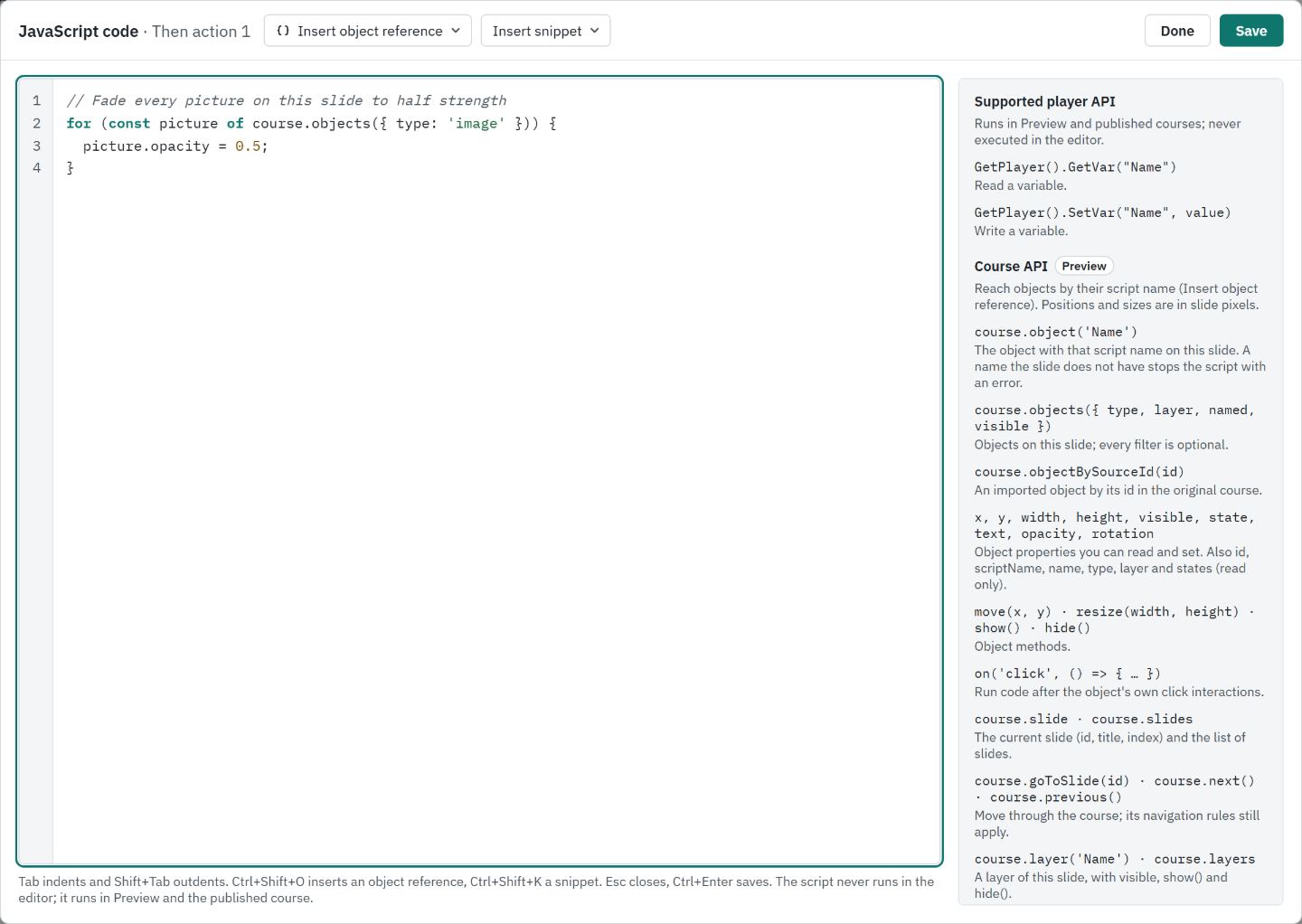
Choose Expand beside the code, or press Ctrl+Shift+Enter in it. The larger editor has line numbers, Tab indentation and the Supported player API list beside the code.
- #
To refer to an object, choose Insert object reference (Ctrl+Shift+O) and pick the object. In the small code box the same button reads Object.
- #
For a starting point, choose Insert snippet (Ctrl+Shift+K): All images on this slide, When clicked, Show or hide an object, Read a variable or Set a variable. Type over each
…to fill it in. - #
Choose Save to save the interaction, or Done (Escape) to go back to the interaction with your changes.
Saving a script never runs it. The editor treats the code as text.
Refer to an object by its script name
A script finds an object by its script name: course.object('HintPicture') is the object named HintPicture on the current slide.
- #
Select the object and open the Advanced section of the Inspector's Design tab.
- #
Type a Script name, such as
HintPicture. Use letters, digits and underscores, start with a letter, and use each name once per slide.
Or pick an unnamed object in Insert object reference. Xogogy suggests a name; choose Name and insert to set it and insert the reference in one step.
A script name stays the same when you rename or move the object. A copy of an object starts without one. A note under the code names any line that refers to an object this slide does not have.
Tip: If the slide has no object with that name, the script stops and Preview's Interaction log shows Script error: No object with the script name '…' on this slide. Use Insert object reference so the name is always right.
Set and read a variable
Create the variable first, in Course settings › Variables. See How do I create a variable?.
course.variables.set('Name', value)sets a variable.course.variables.get('Name')reads one.GetPlayer().SetVar('Name', value)andGetPlayer().GetVar('Name')do the same, for scripts written for Storyline.
A name the course does not have, or a value of the wrong type, is skipped and the variable stays as it was.
Example: show a hint beside a button
Give the hint picture the script name HintPicture and tick Hidden when the slide starts in its Size & position section. Give the button the script name HelpButton. Then add an interaction to the button: the learner clicks, Execute JavaScript:
const hint = course.object('HintPicture');
const button = course.object('HelpButton');
hint.move(button.x + button.width + 16, button.y);
hint.show();
Positions are in slide pixels. A script's changes last until the learner leaves the slide. When they come back, the slide starts as you built it.
Example: remember the learner's choice
Create a text variable named ChosenRole. On the button for managers, add an interaction: the learner clicks, Execute JavaScript:
course.variables.set('ChosenRole', 'Manager');On a later slide with a layer named Manager tips, add an interaction for the slide: the timeline starts, Execute JavaScript:
if (course.variables.get('ChosenRole') === 'Manager') {
  course.layer('Manager tips')?.show();
}
Example: shuffle the pictures when the slide starts
This script finds pictures by type, so it works on any slide without script names. Add it to the slide with the timeline starts:
const pictures = course.objects({ type: 'image' });
const spots = pictures.map(p => ({ x: p.x, y: p.y }));
for (let i = spots.length - 1; i > 0; i--) {
  const j = Math.floor(Math.random() * (i + 1));
  [spots[i], spots[j]] = [spots[j], spots[i]];
}
pictures.forEach((p, i) => p.move(spots[i].x, spots[i].y));
To open a web page, use the Open URL action instead of a script. The script API has no command for it.
What scripts can and cannot do
- Scripts run in the learner's browser in the published course, and in Preview inside an isolated frame that cannot reach the app, your files, your settings or the network. They never run in the editor.
- A script works through the course: objects, layers, slides and variables. Scripts that reach into another player's internals do not work; they are logged.
- Showing, hiding and changing state go through the same rules as the built-in actions. Navigation with
course.next()orcourse.goToSlide(id)still follows the course's navigation rules. - The course API is marked Preview in the editor. Its names may still change before they are final.
- Custom HTML interactions do not get
course. They use their own access settings; see How do I add a custom HTML interaction?.
Test it in Preview
- #
Choose Preview at the right of the ribbon tab row and go to the slide.
- #
Make sure Run course scripts in the Preview toolbar is ticked.
- #
Do what the learner would do. Watch Live variables and Interaction log in the side panel. Any error in a script, including a wrong object name, shows as a Script error line with the message. A wrong variable name shows as a skipped action. A wrong layer name shows as a skipped action, and calling
.show()on it also shows a Script error unless you writecourse.layer('Name')?.show(). - #
To run the course exactly as a published course would, use Open in browser.
Tip: Always try a scripted slide before you publish. If Preview cannot set up the isolated frame on your computer, it keeps scripts off and shows a note saying why.
Publish
Choose Publish… and publish as usual. See How do I publish a SCORM package?. Xogogy warns about any course.object('…') name that no slide has, so you can fix it first.
Hand the scripting to an assistant
- Your own coding assistant: choose File › Export script kit… and pick a folder outside the project. The kit lists this course's slides, script names, states and variables, with a README and a skill file your assistant can load. Paste the script it writes into an Execute JavaScript action.
- A connected assistant: connect it first, for example with Claude Code or Claude Desktop. Then ask, for example: "On the Welcome slide, when the learner clicks the Start button, run a script that sets ChosenRole to Manager." It adds the interaction for you, and you can undo it in one step. See How do I let an assistant edit the course I have open?.
Still stuck?
Write to support@xogogy.com. A person at GForce Learning reads every message. Include the app version from Help › About Xogogy.